> ## Documentation Index
> Fetch the complete documentation index at: https://docs.testdino.com/llms.txt
> Use this file to discover all available pages before exploring further.
# Slack Playwright Test Alerts
> Send Playwright run summaries, failure lists, flaky tests, and tag or annotation alerts to Slack channels and users.
export const VideoSchema = ({name, description, thumbnailUrl, uploadDate, duration, contentUrl, embedUrl}) => {
const schema = {
"@context": "https://schema.org",
"@type": "VideoObject",
name,
description,
thumbnailUrl,
uploadDate,
...duration ? {
duration
} : {},
...contentUrl ? {
contentUrl
} : {},
...embedUrl ? {
embedUrl
} : {},
publisher: {
"@type": "Organization",
name: "TestDino",
logo: {
"@type": "ImageObject",
url: "https://docs.testdino.com/logo/light.svg"
}
}
};
return ;
};
The Slack App posts test run results to Slack channels and users. A project holds a list of notifications, and each one decides when it sends, which test cases it lists, and where it goes.
**Warning**
The Slack App integration is available on the TestDino **Pro**, **Team**, and **Enterprise** plans.
## Quick Reference
| Topic | Link | Best for |
| :- | :- | :- |
| [Connect Slack](#connect-slack) | Setup | First-time OAuth connection |
| [Add a notification](#add-a-notification) | Setup | Creating the first notification |
| [Notification types](#notification-types) | Reference | Picking a starting point |
| [Configure a notification](#configure-a-notification) | Reference | Editor sections and fields |
| [Match tests by tag](#match-tests-by-tag) | How-to | Routing by Playwright tag |
| [Route by annotation](#route-by-annotation) | How-to | Notifying the owner named in test code |
| [Limits](#limits) | Reference | Tag, destination, and row caps |
| [Troubleshooting](#troubleshooting) | Support | Nothing arriving, wrong channel |
## Connect Slack
In **Project → Integrations → Slack App**, click **Connect to Slack** and complete the OAuth (open authorization) flow.
After connecting, the Slack App card shows the connected status with your workspace name.
**Tip**
Alternatively, find and install TestDino from the Slack App Marketplace.
**Warning**
For a private channel, invite the TestDino bot to the channel first. Private channels won't appear in the list or receive notifications until the bot is a member.
## Add a notification
Click the settings icon on the Slack App card to open the **Slack Notification Configuration** dialog. It lists every notification on the project. Click **New** to add one, or select an existing notification to edit it.
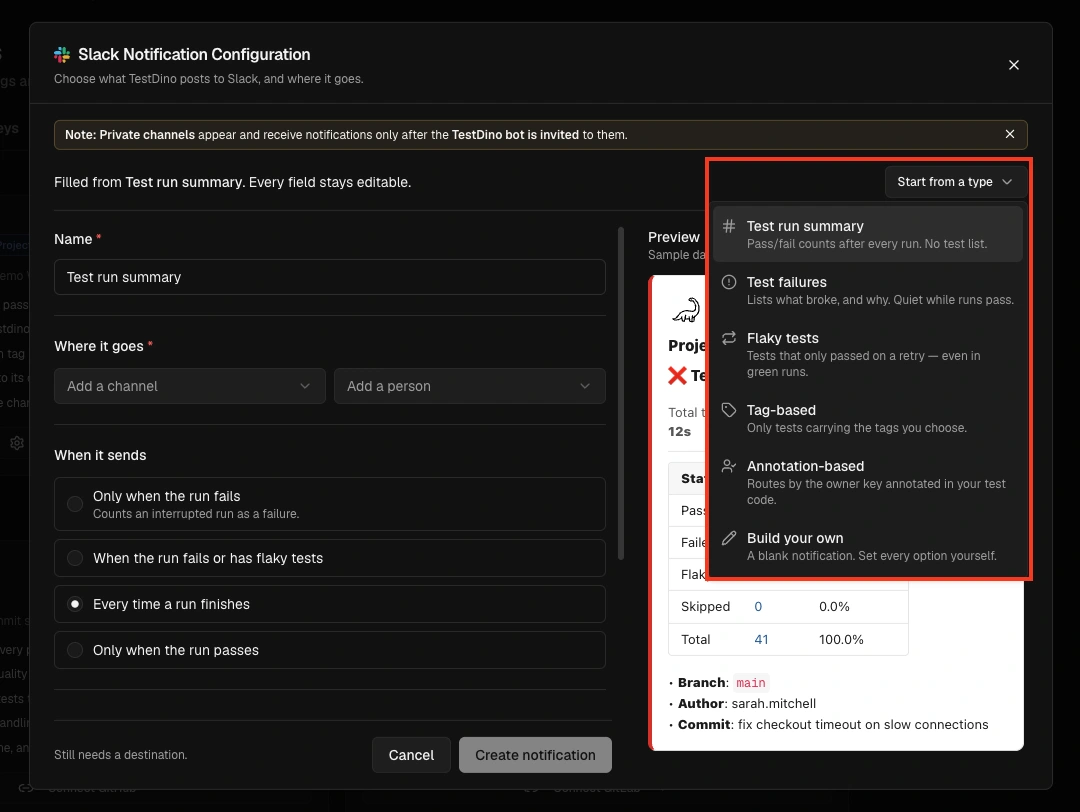
Open **Start from a type** in the editor header and choose one of the 6 types below. Each arrives prefilled, so the only field you have to supply is the destination. Pick **Build your own** to start from a blank notification instead.
Under **Where it goes**, pick one or more Slack channels and users. A notification can target channels and people at the same time.
Every prefilled setting stays editable. Change when it sends, which test cases it lists, or which runs it applies to.
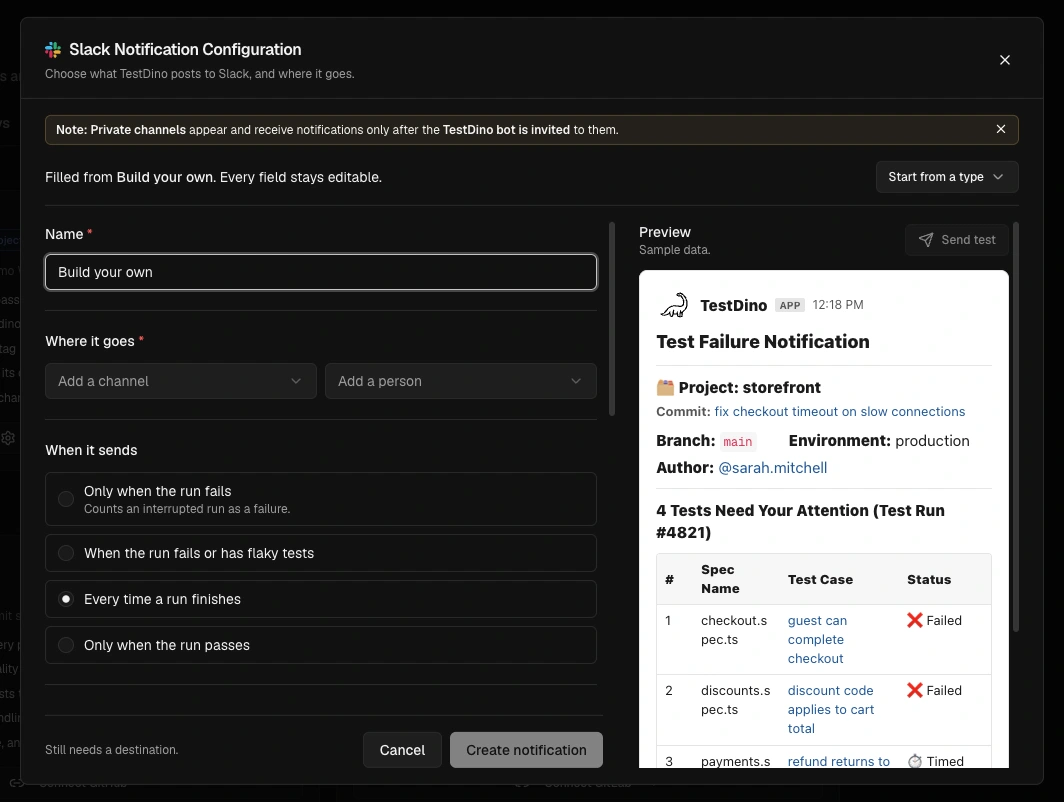
The preview pane renders the exact Slack message as you edit. It runs on demo data, so it works on a project that has never uploaded a test run. If the notification would not send, the preview names the condition that stopped it.
Save the notification, then use **Send test** to post a real message to every destination on it.
**Who can edit**
Adding, editing, and deleting notifications requires the **Organization Admin** or **Owner** role. Everyone else sees the notification list in read-only mode.
## Notification types
Each type is a starting point, not a fixed mode. After picking one, every setting stays editable.
| Type | What it sends |
| :- | :- |
| **Test run summary** | Pass/fail counts after every run. No test list. |
| **Test failures** | Lists what broke, and why. Quiet while runs pass. |
| **Flaky tests** | Tests that only passed on a retry, even in green runs. |
| **Tag-based** | Only tests carrying the tags you choose. |
| **Annotation-based** | Routes by the owner key annotated in your test code. |
| **Build your own** | A blank notification. Set every option yourself. |
**Tag-based** needs at least one tag and **Annotation-based** needs an annotation key. The other 4 are ready to save once a destination is set.
**Start from a type** stays available while you edit, so you can refill the form from a different type at any point. Filling from a type overwrites every field. If the notification has unsaved edits, it asks before replacing them.
## Configure a notification
The editor groups every setting into these sections.
| Section | What it controls |
| :- | :- |
| **Where it goes** | The Slack channels and users that receive the message. Required. |
| **When it sends** | Which run outcomes post a message. |
| **Which tests it lists** | Tag filters, the annotation key, which results to include, and how many rows to list. |
| **Limit it to certain runs** | Branch and environment restrictions. Optional. |
| **Extra detail in the message** | Adds a Tags column, an Error column, or both. Optional. |
| **Message details** | A custom message title and which run details appear in the header. Status, branch, and the run link are always included. |
A **Test run summary** carries no test list, so **Which tests it lists**, **Extra detail in the message**, and **Message details** do not apply to it.
### When it sends
| Option | Fires on |
| :- | :- |
| **Every time a run finishes** | Any completed run |
| **Only when the run fails** | Failed runs, counting an interrupted run as a failure |
| **When the run fails or has flaky tests** | Failed runs, plus green runs carrying flaky retries |
| **Only when the run passes** | Passing runs |
### Which tests it lists
**Include which results** decides which matching test cases reach the message.
| Option | Lists |
| :- | :- |
| **Every test in the run** | All matching test cases |
| **Failed and flaky tests** | Only failed or flaky ones |
| **Failed tests only** | Only failed ones |
| **Flaky tests only** | Only flaky ones |
2 chip fields narrow the list further: **Include tests tagged** and **Skip tests tagged**.
### Extra detail in the message
Both switches are off by default:
* **Show each test's tags** adds a Tags column.
* **Show the first line of each error** adds an Error column.
A column appears only when the switch is on and at least one listed test case carries that data.
### Limit it to certain runs
**Only these branches** and **Only these environments** restrict a notification to a subset of runs. Leave them empty to cover every run. Environments come from [Branch Environment Mapping](/guides/environment-mapping), which maps Git branches to environments such as Production, Staging, and Dev.
Scope a notification to an environment when the same tests should reach different people depending on where they run: `@critical` on Production to `#incident-response`, `@smoke` on Staging to `#qa-review`.
## Match tests by tag
Tag your Playwright tests, then add those [tags](https://playwright.dev/docs/test-annotations#tag-tests) under **Include tests tagged**. Tags must carry the leading `@` and match your test tags exactly.
```ts checkout.spec.ts theme={null}
import { test } from '@playwright/test';
test('completes checkout with valid card', { tag: ['@smoke', '@payment'] }, async ({ page }) => {
await page.goto('https://example.com/checkout');
await page.getByRole('button', { name: 'Pay' }).click();
});
```
By default a test case matches if it carries **any** of the chosen tags, even alongside other tags. Once at least one tag is added, a **Match these tags exactly** option appears. Turn it on to require the test case's tags to be exactly the set you chose, which skips any test carrying an extra tag.
Use **Skip tests tagged** to exclude test cases, for example `@quarantine`.
## Route by annotation
The **Annotation-based** type matches a test case whose annotation type or description equals the **Annotation key** you set, so the owner named in your test code receives the alert.
```ts login.spec.ts theme={null}
import { test, expect } from '@playwright/test';
test('login test', {
annotation: { type: 'testdino:notify-slack', description: '@ashish' },
}, async ({ page }) => {
await page.goto('https://example.com/login');
await expect(page.getByRole('heading', { name: 'Sign in' })).toBeVisible();
});
```
Set **Annotation key** to `testdino:notify-slack`, then pick the Slack channels or users under **Where it goes**. To reach different people from different annotation values, add one notification per key. See the [Annotations guide](/guides/playwright-test-annotations) for every supported annotation type.
## Verify a notification
2 checks confirm a notification before you rely on it:
* **Preview**: the editor renders the exact Slack message as you change settings, on demo data. When a setting would stop the notification from sending, the preview names that condition.
* **Send test**: posts a real Slack message to every destination on the notification. On a partial failure it reports which destination failed and why, for example `Sent to 1 of 2. #alerts: Invite @TestDino to that channel first.`
## Limits
| Limit | Value |
| :- | :- |
| Tags per notification | 20 |
| Channels and users per notification | 10 |
| Test cases listed per message | First 10 matching, with the total count in the header |
## How It Differs from Slack Webhook
The Slack App holds a list of notifications per project. Each one targets its own channels and users, fires on its own run outcomes, lists its own selection of test cases, and can be limited to certain branches and environments.
The [Slack Webhook](/integrations/slack/webhook) sends all notifications to a single channel. It does not support multiple notifications, per-notification destinations, branch or environment limits, tag matching, or annotation routing.
## Troubleshooting
* Verify the Slack App is connected in **Project → Integrations → Slack App**
* Confirm the project has at least one saved notification with a destination under **Where it goes**
* Open the notification and read the preview. If a setting would stop it from sending, the preview names that condition
* Use **Send test** to post a real message to every destination
* Confirm a test run has completed after connecting (messages are sent on run completion)
* Private channels require the TestDino app to be added to the channel first. To add it:
1. Open the private channel in Slack
2. Click the **channel name** at the top to open channel details
3. Go to the **Integrations** tab → click **Add an App**
4. Search for **TestDino**. If you have already completed the OAuth connection, it appears under **In Your Workspace**. If not, it shows results from the Slack Marketplace. Complete the OAuth connection in TestDino first before adding the app to private channels.
* After adding TestDino to the channel, click the **Refresh** button in the TestDino Slack settings to fetch the updated channel list
* **Send test** posts to every destination on the notification, so a partial result means one destination rejected the message
* Read the reason next to the named destination. `Invite @TestDino to that channel first` means the bot is not a member of that private channel
* Add the bot to the channel, then run **Send test** again
* Each notification posts only to the channels and users listed under **Where it goes**. There is no fallback channel
* Open the notification list and check the destinations on each one. A second notification with an overlapping selection posts its own message
* Use **Send test** on a single notification to confirm where that one lands
* Confirm the run contains test cases matching the notification. A run with no matching test cases sends nothing
* Tags must match exactly, including the leading `@` (for example `@smoke`, not `smoke`)
* With **Match these tags exactly** on, a test case carrying any extra tag is skipped. Turn it off to match on any of the chosen tags
* For an annotation notification, confirm the **Annotation key** equals the annotation type or description in your test code
* Check **When it sends**. A notification set to **Only when the run fails** stays quiet on a passing run
* Check **Only these branches** and **Only these environments**. A run outside those lists is skipped
* Adding, editing, and deleting notifications requires the **Organization Admin** or **Owner** role
* Without it, the notification list is read-only
* Ensure you have permission to install apps in the Slack workspace
* Try removing the TestDino app from **Slack → Settings → Manage Apps** and reconnecting from TestDino
Add metadata and Slack notification targets to tests
Single-channel webhook notifications
This documentation is built and hosted on [Mintlify](https://mintlify.com), a developer documentation platform.
 After connecting, the Slack App card shows the connected status with your workspace name.

 ## Configure a notification
The editor groups every setting into these sections.
| Section | What it controls |
| :- | :- |
| **Where it goes** | The Slack channels and users that receive the message. Required. |
| **When it sends** | Which run outcomes post a message. |
| **Which tests it lists** | Tag filters, the annotation key, which results to include, and how many rows to list. |
| **Limit it to certain runs** | Branch and environment restrictions. Optional. |
| **Extra detail in the message** | Adds a Tags column, an Error column, or both. Optional. |
| **Message details** | A custom message title and which run details appear in the header. Status, branch, and the run link are always included. |
A **Test run summary** carries no test list, so **Which tests it lists**, **Extra detail in the message**, and **Message details** do not apply to it.
### When it sends
| Option | Fires on |
| :- | :- |
| **Every time a run finishes** | Any completed run |
| **Only when the run fails** | Failed runs, counting an interrupted run as a failure |
| **When the run fails or has flaky tests** | Failed runs, plus green runs carrying flaky retries |
| **Only when the run passes** | Passing runs |
### Which tests it lists
**Include which results** decides which matching test cases reach the message.
| Option | Lists |
| :- | :- |
| **Every test in the run** | All matching test cases |
| **Failed and flaky tests** | Only failed or flaky ones |
| **Failed tests only** | Only failed ones |
| **Flaky tests only** | Only flaky ones |
2 chip fields narrow the list further: **Include tests tagged** and **Skip tests tagged**.
### Extra detail in the message
Both switches are off by default:
* **Show each test's tags** adds a Tags column.
* **Show the first line of each error** adds an Error column.
A column appears only when the switch is on and at least one listed test case carries that data.
### Limit it to certain runs
**Only these branches** and **Only these environments** restrict a notification to a subset of runs. Leave them empty to cover every run. Environments come from [Branch Environment Mapping](/guides/environment-mapping), which maps Git branches to environments such as Production, Staging, and Dev.
Scope a notification to an environment when the same tests should reach different people depending on where they run: `@critical` on Production to `#incident-response`, `@smoke` on Staging to `#qa-review`.
## Match tests by tag
Tag your Playwright tests, then add those [tags](https://playwright.dev/docs/test-annotations#tag-tests) under **Include tests tagged**. Tags must carry the leading `@` and match your test tags exactly.
```ts checkout.spec.ts theme={null}
import { test } from '@playwright/test';
test('completes checkout with valid card', { tag: ['@smoke', '@payment'] }, async ({ page }) => {
await page.goto('https://example.com/checkout');
await page.getByRole('button', { name: 'Pay' }).click();
});
```
By default a test case matches if it carries **any** of the chosen tags, even alongside other tags. Once at least one tag is added, a **Match these tags exactly** option appears. Turn it on to require the test case's tags to be exactly the set you chose, which skips any test carrying an extra tag.
Use **Skip tests tagged** to exclude test cases, for example `@quarantine`.
## Route by annotation
The **Annotation-based** type matches a test case whose annotation type or description equals the **Annotation key** you set, so the owner named in your test code receives the alert.
```ts login.spec.ts theme={null}
import { test, expect } from '@playwright/test';
test('login test', {
annotation: { type: 'testdino:notify-slack', description: '@ashish' },
}, async ({ page }) => {
await page.goto('https://example.com/login');
await expect(page.getByRole('heading', { name: 'Sign in' })).toBeVisible();
});
```
Set **Annotation key** to `testdino:notify-slack`, then pick the Slack channels or users under **Where it goes**. To reach different people from different annotation values, add one notification per key. See the [Annotations guide](/guides/playwright-test-annotations) for every supported annotation type.
## Verify a notification
2 checks confirm a notification before you rely on it:
* **Preview**: the editor renders the exact Slack message as you change settings, on demo data. When a setting would stop the notification from sending, the preview names that condition.
* **Send test**: posts a real Slack message to every destination on the notification. On a partial failure it reports which destination failed and why, for example `Sent to 1 of 2. #alerts: Invite @TestDino to that channel first.`
## Configure a notification
The editor groups every setting into these sections.
| Section | What it controls |
| :- | :- |
| **Where it goes** | The Slack channels and users that receive the message. Required. |
| **When it sends** | Which run outcomes post a message. |
| **Which tests it lists** | Tag filters, the annotation key, which results to include, and how many rows to list. |
| **Limit it to certain runs** | Branch and environment restrictions. Optional. |
| **Extra detail in the message** | Adds a Tags column, an Error column, or both. Optional. |
| **Message details** | A custom message title and which run details appear in the header. Status, branch, and the run link are always included. |
A **Test run summary** carries no test list, so **Which tests it lists**, **Extra detail in the message**, and **Message details** do not apply to it.
### When it sends
| Option | Fires on |
| :- | :- |
| **Every time a run finishes** | Any completed run |
| **Only when the run fails** | Failed runs, counting an interrupted run as a failure |
| **When the run fails or has flaky tests** | Failed runs, plus green runs carrying flaky retries |
| **Only when the run passes** | Passing runs |
### Which tests it lists
**Include which results** decides which matching test cases reach the message.
| Option | Lists |
| :- | :- |
| **Every test in the run** | All matching test cases |
| **Failed and flaky tests** | Only failed or flaky ones |
| **Failed tests only** | Only failed ones |
| **Flaky tests only** | Only flaky ones |
2 chip fields narrow the list further: **Include tests tagged** and **Skip tests tagged**.
### Extra detail in the message
Both switches are off by default:
* **Show each test's tags** adds a Tags column.
* **Show the first line of each error** adds an Error column.
A column appears only when the switch is on and at least one listed test case carries that data.
### Limit it to certain runs
**Only these branches** and **Only these environments** restrict a notification to a subset of runs. Leave them empty to cover every run. Environments come from [Branch Environment Mapping](/guides/environment-mapping), which maps Git branches to environments such as Production, Staging, and Dev.
Scope a notification to an environment when the same tests should reach different people depending on where they run: `@critical` on Production to `#incident-response`, `@smoke` on Staging to `#qa-review`.
## Match tests by tag
Tag your Playwright tests, then add those [tags](https://playwright.dev/docs/test-annotations#tag-tests) under **Include tests tagged**. Tags must carry the leading `@` and match your test tags exactly.
```ts checkout.spec.ts theme={null}
import { test } from '@playwright/test';
test('completes checkout with valid card', { tag: ['@smoke', '@payment'] }, async ({ page }) => {
await page.goto('https://example.com/checkout');
await page.getByRole('button', { name: 'Pay' }).click();
});
```
By default a test case matches if it carries **any** of the chosen tags, even alongside other tags. Once at least one tag is added, a **Match these tags exactly** option appears. Turn it on to require the test case's tags to be exactly the set you chose, which skips any test carrying an extra tag.
Use **Skip tests tagged** to exclude test cases, for example `@quarantine`.
## Route by annotation
The **Annotation-based** type matches a test case whose annotation type or description equals the **Annotation key** you set, so the owner named in your test code receives the alert.
```ts login.spec.ts theme={null}
import { test, expect } from '@playwright/test';
test('login test', {
annotation: { type: 'testdino:notify-slack', description: '@ashish' },
}, async ({ page }) => {
await page.goto('https://example.com/login');
await expect(page.getByRole('heading', { name: 'Sign in' })).toBeVisible();
});
```
Set **Annotation key** to `testdino:notify-slack`, then pick the Slack channels or users under **Where it goes**. To reach different people from different annotation values, add one notification per key. See the [Annotations guide](/guides/playwright-test-annotations) for every supported annotation type.
## Verify a notification
2 checks confirm a notification before you rely on it:
* **Preview**: the editor renders the exact Slack message as you change settings, on demo data. When a setting would stop the notification from sending, the preview names that condition.
* **Send test**: posts a real Slack message to every destination on the notification. On a partial failure it reports which destination failed and why, for example `Sent to 1 of 2. #alerts: Invite @TestDino to that channel first.`
 ## Limits
| Limit | Value |
| :- | :- |
| Tags per notification | 20 |
| Channels and users per notification | 10 |
| Test cases listed per message | First 10 matching, with the total count in the header |
## How It Differs from Slack Webhook
The Slack App holds a list of notifications per project. Each one targets its own channels and users, fires on its own run outcomes, lists its own selection of test cases, and can be limited to certain branches and environments.
The [Slack Webhook](/integrations/slack/webhook) sends all notifications to a single channel. It does not support multiple notifications, per-notification destinations, branch or environment limits, tag matching, or annotation routing.
## Troubleshooting
## Limits
| Limit | Value |
| :- | :- |
| Tags per notification | 20 |
| Channels and users per notification | 10 |
| Test cases listed per message | First 10 matching, with the total count in the header |
## How It Differs from Slack Webhook
The Slack App holds a list of notifications per project. Each one targets its own channels and users, fires on its own run outcomes, lists its own selection of test cases, and can be limited to certain branches and environments.
The [Slack Webhook](/integrations/slack/webhook) sends all notifications to a single channel. It does not support multiple notifications, per-notification destinations, branch or environment limits, tag matching, or annotation routing.
## Troubleshooting