> ## Documentation Index
> Fetch the complete documentation index at: https://docs.testdino.com/llms.txt
> Use this file to discover all available pages before exploring further.
# TestDino SSO with OIDC
> Set up per-organization single sign-on with OIDC, verify your domains, and enforce SSO from the TestDino settings UI.
export const HowToSchema = ({name, description, steps = []}) => {
const schema = {
"@context": "https://schema.org",
"@type": "HowTo",
name,
...description ? {
description
} : {},
step: steps.map(({name: stepName, text}, i) => ({
"@type": "HowToStep",
position: i + 1,
name: stepName,
text
}))
};
return ;
};
/callback, and assign your users." },
{ name: "Paste the values into TestDino", text: "Paste the Issuer, Client ID, and Client secret from your IdP into the Single Sign-On card and save." },
{ name: "Verify your domain", text: "Add your domain, publish the _testdino-verify DNS TXT record, then click Verify. Enforcement applies only to verified domains." },
{ name: "Set enforcement and a default role", text: "Require SSO for your verified domains and choose the default role assigned on a user's first sign-in." },
{ name: "Save and test sign-in", text: "Save changes, then test in an incognito window at https://app.testdino.com/auth/sso with a work email on a verified domain." },
]}
/>
Single sign-on (SSO) connects your organization to your company identity provider (IdP) such as Okta, Microsoft Entra ID, or Google Workspace, so your team signs in with their existing credentials. You configure it per organization under **Settings → Single Sign-On**. No engineering work is needed.
TestDino SSO uses **OpenID Connect (OIDC)**. SAML is not available. To create and deactivate users automatically from your IdP once SSO is enforced, set up [SCIM Provisioning](/platform/organizations/scim-provisioning).
## Quick Reference
| Step | What you do | Where |
| :- | :- | :- |
| 1 | Pick your SSO mode | Decide before configuring |
| 2 | Open the SSO settings and pick an organization key | TestDino |
| 3 | Create an OIDC app and paste its values | Your IdP, then TestDino |
| 4 | Verify your domain with a DNS TXT record | TestDino, then DNS |
| 5 | Set enforcement and a default role | TestDino |
| 6 | Save and test sign-in | Both |
| 7 | Automate user creation with SCIM (optional) | [SCIM Provisioning](/platform/organizations/scim-provisioning) |
## 2 hosts to keep straight
TestDino serves its dashboard and its API on different hostnames, and the split matters for SSO:
| You use this for | Host |
| :- | :- |
| Signing in and using the TestDino dashboard | `https://app.testdino.com` |
| The redirect URI you paste into your IdP | `https://user.testdino.com` |
The most common setup failure is registering an `app.testdino.com` URL in your IdP. The redirect URI uses `user.testdino.com`. Use it exactly as written, with no trailing slash and no typos.
On a dedicated or custom domain, replace `user.testdino.com` with the host your TestDino account team gave you.
## Before you start
* An **Owner or Admin** account. Only Owners and Admins see the Single Sign-On tab.
* **SSO enabled on your plan.** The tab appears only for SSO-entitled organizations, so contact [support@testdino.com](mailto:support@testdino.com) if it is missing.
* **IdP admin access** to create an app integration.
* **DNS access** for each domain you enforce, to publish a verification record.
* An **organization key** you pick in TestDino, such as `acme`.
## Pick your SSO mode
Enforcement decides who signs in through your IdP and what happens to accounts that already exist. Choose the mode before you configure anything, because it changes how existing members are handled.
| You want | Set it up as | Result |
| :- | :- | :- |
| Everyone signs in with the IdP, no passwords | Enable **and** enforce SSO | Password sign-in is off for your verified domains. Existing members link to SSO automatically the first time they sign in through it. |
| Only new team members come in through the IdP | Enable SSO, leave enforcement off | New people are created on first sign-in. Existing members keep their current login. |
| SSO alongside passwords for accounts that already exist | Not available | An existing account links to SSO only when enforcement is on. There is no optional SSO for existing accounts. |
Enforcing SSO is the mode most companies want. There is no bulk migration step: each existing member links their account by signing in through the IdP once.
## Guests and external users
SSO provisions only people whose email is on a domain you have verified. A guest signing in with an outside address, such as a partner's domain or a personal account, cannot be provisioned through SSO.
To give an external person access, either verify the domain their email uses, or invite them into your organization by email so they use a standard login. Learn more about inviting members in [Users, Roles & Permissions](/platform/organizations/users-roles).
## How it fits together
SSO coordinates 2 systems that must agree on the same URLs:
1. **Your IdP**: the OIDC app and who may use it.
2. **TestDino** (Settings → Single Sign-On): the IdP address, signing material, and policy.
The link is your **organization key** (lowercase letters, digits, and hyphens, such as `acme`). Pick it first and use the exact same value on both sides. TestDino builds every URL from it.
```text theme={null}
Sign-in (start): https://user.testdino.com/api/v1/auth/sso//login
OIDC callback: https://user.testdino.com/api/v1/auth/sso//callback
```
The **callback** is the only URL you register in your IdP. The sign-in URL is a direct link your team can use to start login.
The callback URL you register in your IdP must match the organization key saved in TestDino, with no trailing slash and no typos. A mismatch is the most common reason sign-in fails. Pick the key first, then use it on both sides.
## Configure SSO
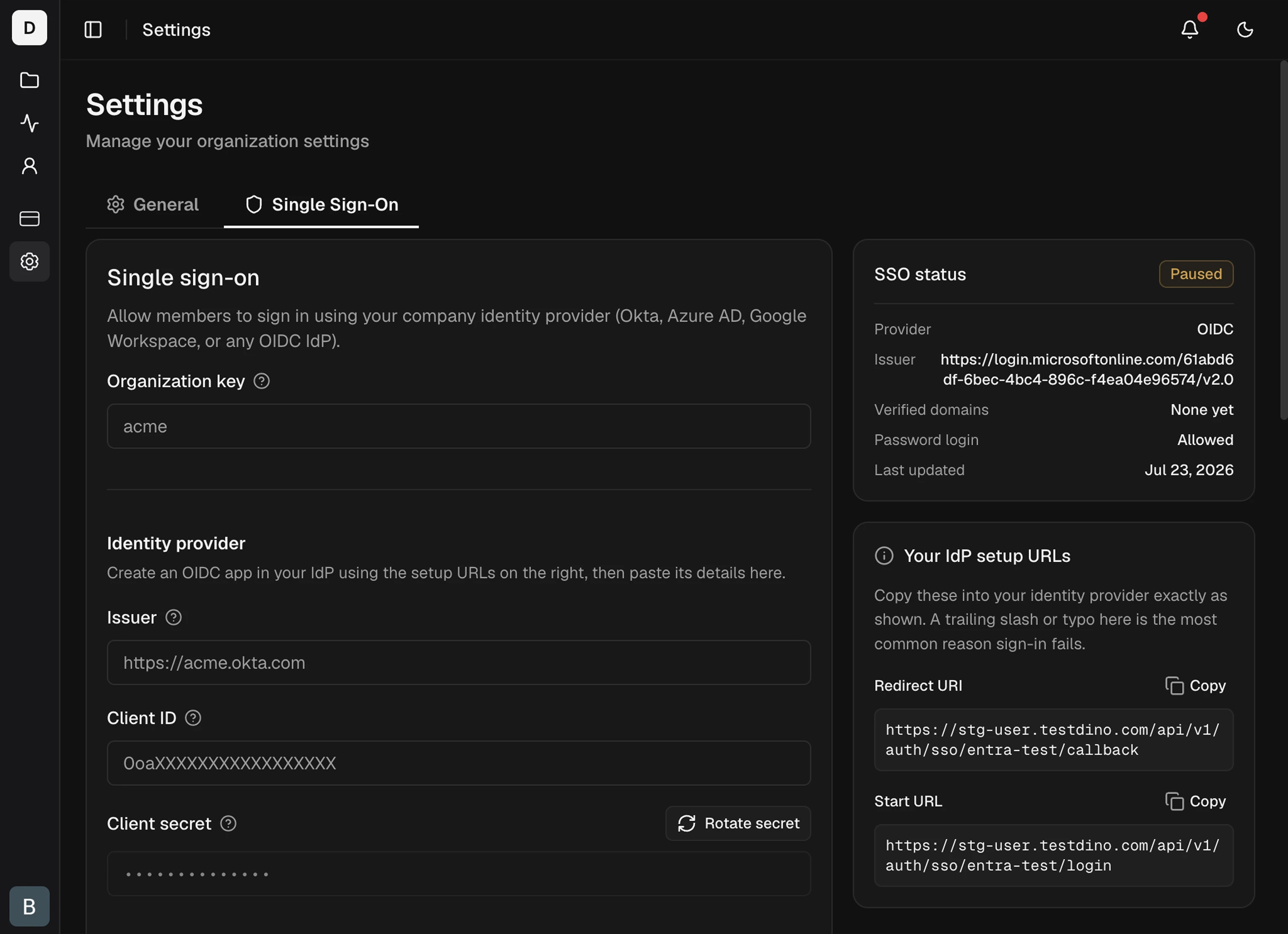 Go to **Settings → Single Sign-On**. No tab means you are not an admin, or the organization is not SSO-entitled.
Enter your **organization key** before you set up the IdP. It becomes part of every sign-in URL, so changing it later breaks existing links. Use lowercase letters, digits, and hyphens, such as `acme`.
Create an OIDC web app with the Authorization Code grant type. When it asks for a sign-in redirect URI, use this exact value:
```text theme={null}
https://user.testdino.com/api/v1/auth/sso//callback
```
Then find the Issuer, Client ID, and Client secret for the next step. Each provider names these fields differently:
1. Go to **Applications → Create App Integration → OIDC / Web Application** and paste the redirect URI above.
2. Open **Assignments**, assign your users, and save.
Collect these 3 values for the next step:
| Value | Where to find it in Okta |
| :- | :- |
| **Issuer** | Security → API → Authorization Servers → default → Issuer URI |
| **Client ID** | App → General → Client Credentials |
| **Client secret** | Same section → Show → copy (shown once) |
If Okta returns "Policy evaluation failed", add an access policy at **Security → API → Authorization Servers → default → Access Policies**, then add a rule that allows the Authorization Code grant for your assigned users.
1. Go to **Microsoft Entra ID → App registrations → New registration**.
2. Set **Supported account types** to **Accounts in this organizational directory only** (single-tenant).
3. Paste the redirect URI above under platform **Web**, then register.
4. Add the email claim: **Token configuration → Add optional claim → ID → `email`**, then accept the prompt to turn on the Microsoft Graph email permission.
5. Set each sign-in user's **Email** attribute: **Users → `` → Edit properties → Contact information → Email**.
Collect these 3 values for the next step:
| Value | Where to find it in Entra |
| :- | :- |
| **Issuer** | `https://login.microsoftonline.com//v2.0`, using the Directory (tenant) ID from **Overview** |
| **Client ID** | Application (client) ID from **Overview** |
| **Client secret** | **Certificates & secrets → New client secret**, copy the **Value** (shown once) |
A new Entra user's Email attribute is blank by default, and sign-in fails with "did not return an email address" until you set it (step 5).
In the Single Sign-On card, paste the **Issuer**, **Client ID**, and **Client secret**, then save. The secret is encrypted at rest and never shown again.
* **Require SSO for these domains** blocks password sign-in for any email on a verified domain and sends those users to your IdP. Enforcement applies only to **verified** domains (see below).
* **Default role** is the role assigned on a user's first SSO sign-in. Member is typical, and Admins can change it later. A new SSO user can receive `admin`, `member`, `billing`, or `viewer`, never `owner`.
A brand-new user signs in with no extra setup. Someone who already has a TestDino account (password or Google) links to SSO only when enforcement is on for their verified domain, otherwise sign-in returns "An account with this email already exists".
## Verify your domain
Adding a domain does not enforce SSO on its own. TestDino confirms you own the domain with a DNS TXT record before it routes or enforces that domain. This prevents another organization from claiming a domain you own.
Go to **Settings → Single Sign-On**. No tab means you are not an admin, or the organization is not SSO-entitled.
Enter your **organization key** before you set up the IdP. It becomes part of every sign-in URL, so changing it later breaks existing links. Use lowercase letters, digits, and hyphens, such as `acme`.
Create an OIDC web app with the Authorization Code grant type. When it asks for a sign-in redirect URI, use this exact value:
```text theme={null}
https://user.testdino.com/api/v1/auth/sso//callback
```
Then find the Issuer, Client ID, and Client secret for the next step. Each provider names these fields differently:
1. Go to **Applications → Create App Integration → OIDC / Web Application** and paste the redirect URI above.
2. Open **Assignments**, assign your users, and save.
Collect these 3 values for the next step:
| Value | Where to find it in Okta |
| :- | :- |
| **Issuer** | Security → API → Authorization Servers → default → Issuer URI |
| **Client ID** | App → General → Client Credentials |
| **Client secret** | Same section → Show → copy (shown once) |
If Okta returns "Policy evaluation failed", add an access policy at **Security → API → Authorization Servers → default → Access Policies**, then add a rule that allows the Authorization Code grant for your assigned users.
1. Go to **Microsoft Entra ID → App registrations → New registration**.
2. Set **Supported account types** to **Accounts in this organizational directory only** (single-tenant).
3. Paste the redirect URI above under platform **Web**, then register.
4. Add the email claim: **Token configuration → Add optional claim → ID → `email`**, then accept the prompt to turn on the Microsoft Graph email permission.
5. Set each sign-in user's **Email** attribute: **Users → `` → Edit properties → Contact information → Email**.
Collect these 3 values for the next step:
| Value | Where to find it in Entra |
| :- | :- |
| **Issuer** | `https://login.microsoftonline.com//v2.0`, using the Directory (tenant) ID from **Overview** |
| **Client ID** | Application (client) ID from **Overview** |
| **Client secret** | **Certificates & secrets → New client secret**, copy the **Value** (shown once) |
A new Entra user's Email attribute is blank by default, and sign-in fails with "did not return an email address" until you set it (step 5).
In the Single Sign-On card, paste the **Issuer**, **Client ID**, and **Client secret**, then save. The secret is encrypted at rest and never shown again.
* **Require SSO for these domains** blocks password sign-in for any email on a verified domain and sends those users to your IdP. Enforcement applies only to **verified** domains (see below).
* **Default role** is the role assigned on a user's first SSO sign-in. Member is typical, and Admins can change it later. A new SSO user can receive `admin`, `member`, `billing`, or `viewer`, never `owner`.
A brand-new user signs in with no extra setup. Someone who already has a TestDino account (password or Google) links to SSO only when enforcement is on for their verified domain, otherwise sign-in returns "An account with this email already exists".
## Verify your domain
Adding a domain does not enforce SSO on its own. TestDino confirms you own the domain with a DNS TXT record before it routes or enforces that domain. This prevents another organization from claiming a domain you own.
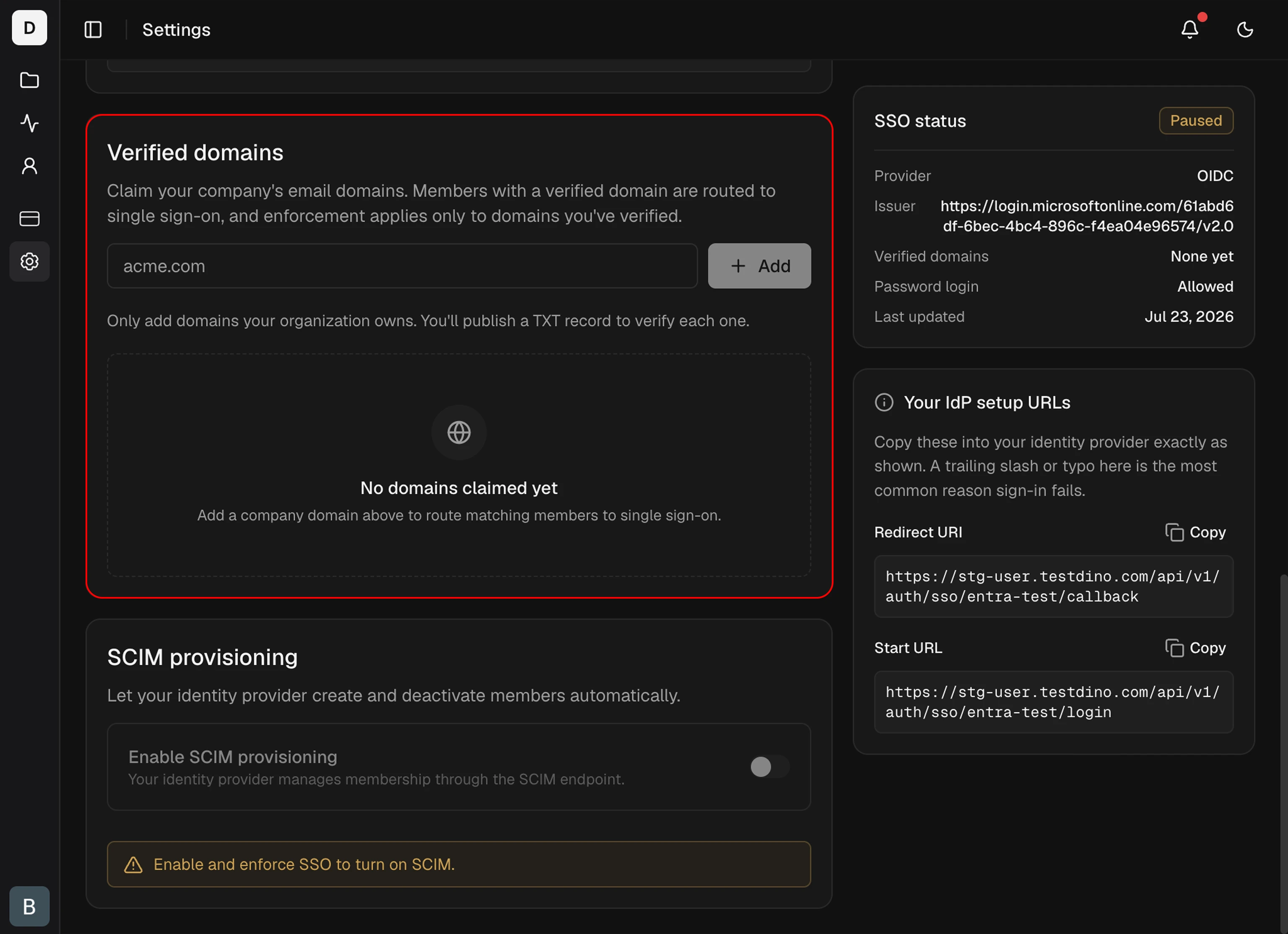 In the Single Sign-On card, add a domain such as `acme.com`. It starts in the **Pending** state and shows a TXT record to publish. Verification is exact-match: verifying `acme.com` covers `@acme.com` emails only. Add subdomains separately.
Copy the record from the domain row and add it at your DNS provider:
| Field | Value |
| :- | :- |
| Type | TXT |
| Name / Host | `_testdino-verify.` |
| Value | `testdino-domain-verify=` |
TestDino generates the token, so copy it from the row rather than typing it.
After DNS propagates, click **Verify** on the domain row. On success, the domain moves to **Verified** and starts powering discovery and enforcement. If it still fails, DNS may not have propagated yet, so wait and retry.
Public email domains such as `gmail.com` cannot be verified or enforced. Only domains your organization controls in DNS are eligible. A domain can be verified by 1 organization at a time, so if another organization already verified it, verification returns a conflict.
## Domain states
TestDino re-checks each verified domain's DNS record about every 24 hours. If the record goes missing, the domain enters a 7-day grace window before it stops working, so a brief DNS slip never locks your team out mid-day. TestDino emails admins when a domain enters grace and again before it is revoked.
| State | Meaning | Effect |
| :- | :- | :- |
| **Pending** | Added, not yet verified | No discovery or enforcement. Use the direct sign-in link. |
| **Verified** | DNS record confirmed | Powers email discovery and enforcement. |
| **Grace** | Record went missing on a re-check | Still treated as verified for up to 7 days. Restore the DNS record before the window ends. |
If a verified domain stays missing past the 7-day grace window, TestDino revokes the domain and it returns to Pending. Enforcement stops for that domain. Keep the `_testdino-verify` record published for as long as SSO is enforced.
## Save and test
Click **Save changes**. The status badge shows **Configured · OIDC**.
Test in an incognito window:
In the Single Sign-On card, add a domain such as `acme.com`. It starts in the **Pending** state and shows a TXT record to publish. Verification is exact-match: verifying `acme.com` covers `@acme.com` emails only. Add subdomains separately.
Copy the record from the domain row and add it at your DNS provider:
| Field | Value |
| :- | :- |
| Type | TXT |
| Name / Host | `_testdino-verify.` |
| Value | `testdino-domain-verify=` |
TestDino generates the token, so copy it from the row rather than typing it.
After DNS propagates, click **Verify** on the domain row. On success, the domain moves to **Verified** and starts powering discovery and enforcement. If it still fails, DNS may not have propagated yet, so wait and retry.
Public email domains such as `gmail.com` cannot be verified or enforced. Only domains your organization controls in DNS are eligible. A domain can be verified by 1 organization at a time, so if another organization already verified it, verification returns a conflict.
## Domain states
TestDino re-checks each verified domain's DNS record about every 24 hours. If the record goes missing, the domain enters a 7-day grace window before it stops working, so a brief DNS slip never locks your team out mid-day. TestDino emails admins when a domain enters grace and again before it is revoked.
| State | Meaning | Effect |
| :- | :- | :- |
| **Pending** | Added, not yet verified | No discovery or enforcement. Use the direct sign-in link. |
| **Verified** | DNS record confirmed | Powers email discovery and enforcement. |
| **Grace** | Record went missing on a re-check | Still treated as verified for up to 7 days. Restore the DNS record before the window ends. |
If a verified domain stays missing past the 7-day grace window, TestDino revokes the domain and it returns to Pending. Enforcement stops for that domain. Keep the `_testdino-verify` record published for as long as SSO is enforced.
## Save and test
Click **Save changes**. The status badge shows **Configured · OIDC**.
Test in an incognito window:
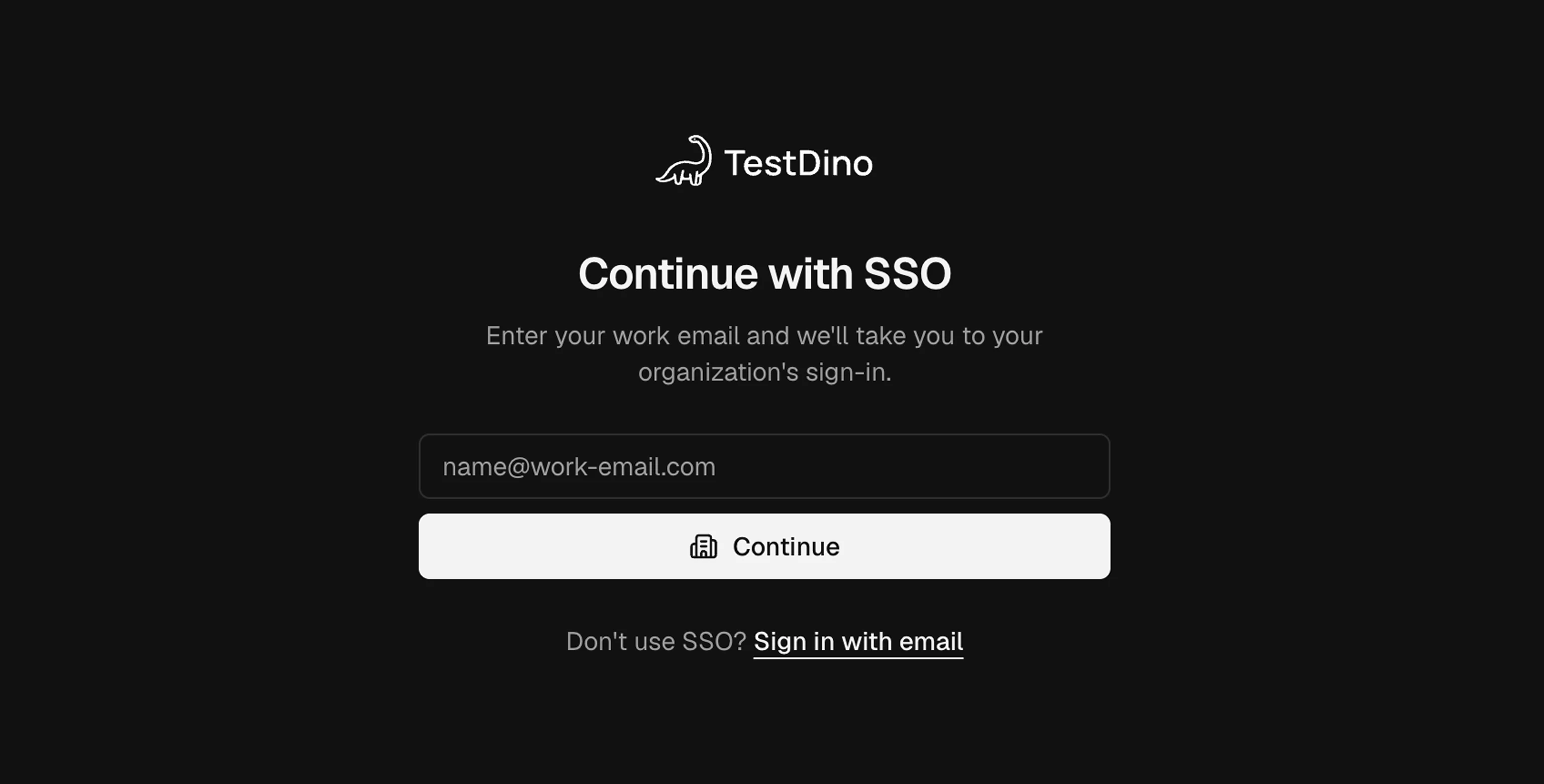 Open [`https://app.testdino.com/auth/sso`](https://app.testdino.com/auth/sso), enter a work email on a verified, SSO-enabled domain, and click **Continue**. The direct link `https://user.testdino.com/api/v1/auth/sso//login` also works and skips email discovery.
Complete the login with your IdP credentials.
You return signed in, and the user appears in your organization.
**Just-in-time (JIT) provisioning:** The first SSO sign-in creates the account, assigns the default role, and adds it to the matching-domain organization. Later sign-ins reuse the same account.
JIT covers account creation but not removal: a person who leaves your IdP keeps their TestDino account until an admin removes it. To create and deactivate accounts from your IdP roster instead, set up [SCIM Provisioning](/platform/organizations/scim-provisioning).
## How your team signs in
Once SSO is active, your team has 3 ways to sign in:
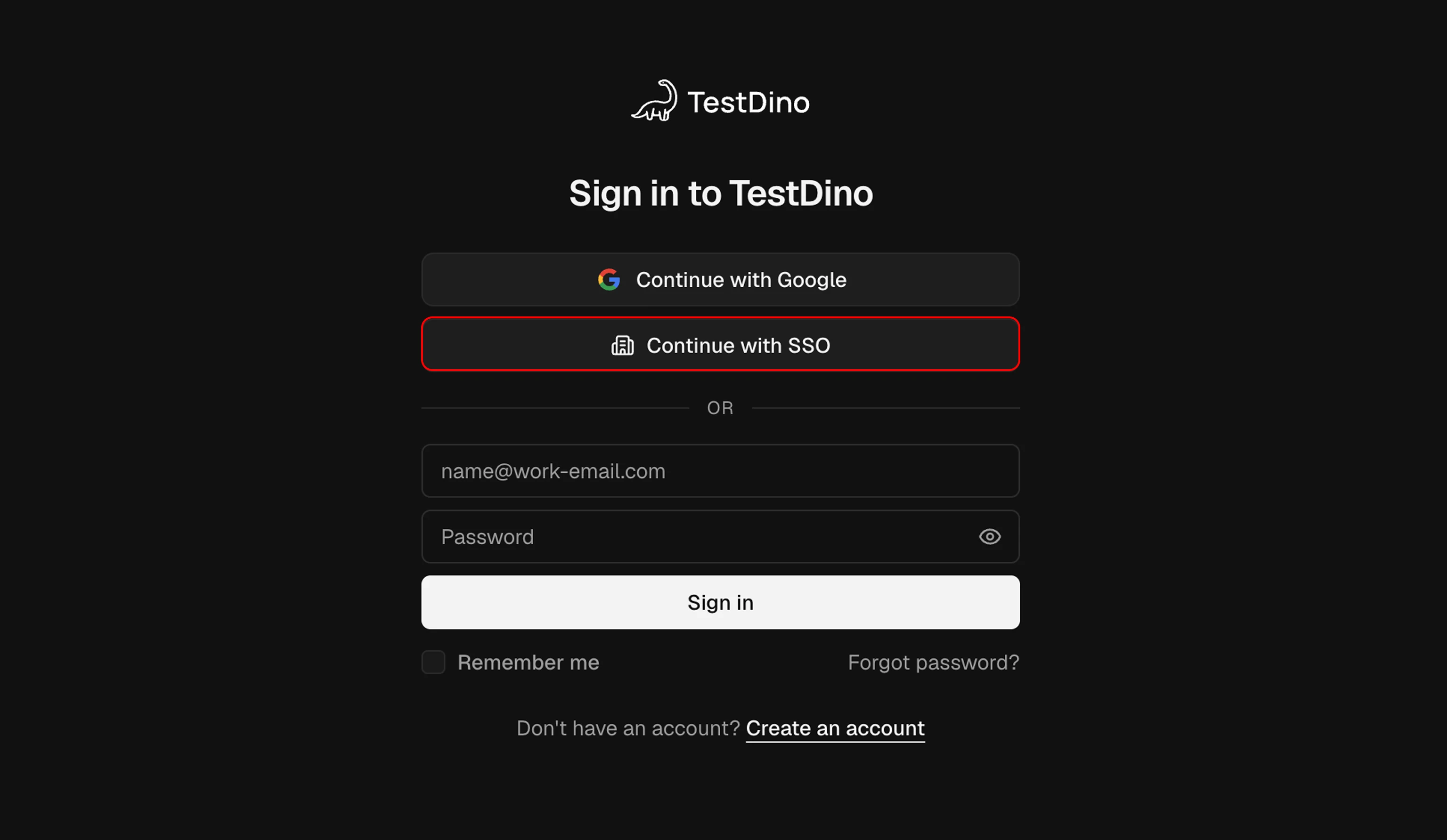
* **Email discovery** at [`https://app.testdino.com/auth/sso`](https://app.testdino.com/auth/sso). The user enters their work email under **Continue with SSO**, and TestDino routes them to the matching organization's IdP. Discovery works only for verified domains. The **Continue with SSO** button on the main login page (`app.testdino.com/auth/login`) opens this same page.
* **IdP app tile** in your identity provider (IdP-initiated).
* **Direct link** to `https://user.testdino.com/api/v1/auth/sso//login`, which skips email discovery and starts your org's IdP login. This is the link to share while a domain is still Pending.
Open [`https://app.testdino.com/auth/sso`](https://app.testdino.com/auth/sso), enter a work email on a verified, SSO-enabled domain, and click **Continue**. The direct link `https://user.testdino.com/api/v1/auth/sso//login` also works and skips email discovery.
Complete the login with your IdP credentials.
You return signed in, and the user appears in your organization.
**Just-in-time (JIT) provisioning:** The first SSO sign-in creates the account, assigns the default role, and adds it to the matching-domain organization. Later sign-ins reuse the same account.
JIT covers account creation but not removal: a person who leaves your IdP keeps their TestDino account until an admin removes it. To create and deactivate accounts from your IdP roster instead, set up [SCIM Provisioning](/platform/organizations/scim-provisioning).
## How your team signs in
Once SSO is active, your team has 3 ways to sign in:
* **Email discovery** at [`https://app.testdino.com/auth/sso`](https://app.testdino.com/auth/sso). The user enters their work email under **Continue with SSO**, and TestDino routes them to the matching organization's IdP. Discovery works only for verified domains. The **Continue with SSO** button on the main login page (`app.testdino.com/auth/login`) opens this same page.
* **IdP app tile** in your identity provider (IdP-initiated).
* **Direct link** to `https://user.testdino.com/api/v1/auth/sso//login`, which skips email discovery and starts your org's IdP login. This is the link to share while a domain is still Pending.
 ## Day-2 operations
Once SSO is live, these are the routine tasks for keeping it running and rotating credentials.
| Task | How |
| :- | :- |
| Rotate the OIDC secret | Create a new secret in your IdP, paste it into Client secret, and save. Leaving it blank keeps the current secret. |
| Pause SSO | Clear enforcement to allow password sign-in again. |
| Add a domain | Add it, publish the TXT record, then verify. Enforcement starts once it is Verified. |
| Remove a domain | Delete the domain row. Enforcement stops for that domain at once. |
| Automate user creation and removal | Enforce SSO on a verified domain, then set up [SCIM Provisioning](/platform/organizations/scim-provisioning). |
## Troubleshooting
Most SSO failures trace to a mismatch between your IdP and the values saved in TestDino. Match your error message to the row below.
| Symptom | Cause | Fix |
| :- | :- | :- |
| IdP: "redirect\_uri must be a Login redirect URI", or Entra: `redirect_uri_mismatch` | Callback URL does not match the organization key | Set the IdP redirect URI to exactly `…/api/v1/auth/sso//callback` on `user.testdino.com`, not `app`, with no trailing slash |
| Entra: `AADSTS900971: No reply address provided` | The redirect URI is not registered under the Web platform | Add the callback URL at **App registration → Authentication → Web** |
| Okta: "Policy evaluation failed" | No access policy, or the user is not assigned | Add an access policy and rule on the default auth server, then assign the user |
| Entra: "did not return an email address" | The user's Email attribute is blank | Set it at **Users → `` → Edit properties → Contact information → Email** |
| "An account with this email already exists" | Existing member and enforcement is off | Turn on **Require SSO for these domains** for that verified domain, then sign in again |
| Domain stays Pending after Verify | DNS record missing, wrong, or not propagated | Confirm the `_testdino-verify.` TXT value matches exactly, then retry after propagation |
| Verify returns a conflict | Another organization already verified this domain | A domain verifies to 1 organization at a time. Contact support if it should belong to yours. |
| Enforcement not applied to a domain | Domain is Pending, not Verified | Verify the domain first. Only verified domains are enforced. |
| "…has not verified this email domain…" | The email's domain is not verified, which is expected for guests on outside domains | Verify that domain, or invite the person by email instead |
| "SSO is not included in this organization's plan" | The plan does not include SSO | Contact [support@testdino.com](mailto:support@testdino.com) to upgrade |
| No Single Sign-On tab | Not an admin, or the org is not SSO-entitled | Get admin access, or contact support |
| Password login refused with an SSO message | Enforcement is on for that domain | Sign in with SSO, or remove the domain from enforcement |
| Cannot sign in after deactivation | Expected. Deactivated accounts are blocked. | Reactivate the account in TestDino |
| "User limit reached" on sign-in | The plan seat limit is full | Free a seat or upgrade the plan |
Seat limits apply to new users only. A net-new SSO sign-in is blocked when the org is at its limit, but existing members signing in again are never blocked.
## Related
Understand the roles a new SSO user can receive.
Manage your organization profile and ownership.
Review how TestDino handles credentials and customer data.
Create and deactivate users automatically from your IdP.
This documentation is built and hosted on [Mintlify](https://mintlify.com), a developer documentation platform.
## Day-2 operations
Once SSO is live, these are the routine tasks for keeping it running and rotating credentials.
| Task | How |
| :- | :- |
| Rotate the OIDC secret | Create a new secret in your IdP, paste it into Client secret, and save. Leaving it blank keeps the current secret. |
| Pause SSO | Clear enforcement to allow password sign-in again. |
| Add a domain | Add it, publish the TXT record, then verify. Enforcement starts once it is Verified. |
| Remove a domain | Delete the domain row. Enforcement stops for that domain at once. |
| Automate user creation and removal | Enforce SSO on a verified domain, then set up [SCIM Provisioning](/platform/organizations/scim-provisioning). |
## Troubleshooting
Most SSO failures trace to a mismatch between your IdP and the values saved in TestDino. Match your error message to the row below.
| Symptom | Cause | Fix |
| :- | :- | :- |
| IdP: "redirect\_uri must be a Login redirect URI", or Entra: `redirect_uri_mismatch` | Callback URL does not match the organization key | Set the IdP redirect URI to exactly `…/api/v1/auth/sso//callback` on `user.testdino.com`, not `app`, with no trailing slash |
| Entra: `AADSTS900971: No reply address provided` | The redirect URI is not registered under the Web platform | Add the callback URL at **App registration → Authentication → Web** |
| Okta: "Policy evaluation failed" | No access policy, or the user is not assigned | Add an access policy and rule on the default auth server, then assign the user |
| Entra: "did not return an email address" | The user's Email attribute is blank | Set it at **Users → `` → Edit properties → Contact information → Email** |
| "An account with this email already exists" | Existing member and enforcement is off | Turn on **Require SSO for these domains** for that verified domain, then sign in again |
| Domain stays Pending after Verify | DNS record missing, wrong, or not propagated | Confirm the `_testdino-verify.` TXT value matches exactly, then retry after propagation |
| Verify returns a conflict | Another organization already verified this domain | A domain verifies to 1 organization at a time. Contact support if it should belong to yours. |
| Enforcement not applied to a domain | Domain is Pending, not Verified | Verify the domain first. Only verified domains are enforced. |
| "…has not verified this email domain…" | The email's domain is not verified, which is expected for guests on outside domains | Verify that domain, or invite the person by email instead |
| "SSO is not included in this organization's plan" | The plan does not include SSO | Contact [support@testdino.com](mailto:support@testdino.com) to upgrade |
| No Single Sign-On tab | Not an admin, or the org is not SSO-entitled | Get admin access, or contact support |
| Password login refused with an SSO message | Enforcement is on for that domain | Sign in with SSO, or remove the domain from enforcement |
| Cannot sign in after deactivation | Expected. Deactivated accounts are blocked. | Reactivate the account in TestDino |
| "User limit reached" on sign-in | The plan seat limit is full | Free a seat or upgrade the plan |
Seat limits apply to new users only. A net-new SSO sign-in is blocked when the org is at its limit, but existing members signing in again are never blocked.
## Related
Understand the roles a new SSO user can receive.
Manage your organization profile and ownership.
Review how TestDino handles credentials and customer data.
Create and deactivate users automatically from your IdP.
This documentation is built and hosted on [Mintlify](https://mintlify.com), a developer documentation platform.