> ## Documentation Index
> Fetch the complete documentation index at: https://docs.testdino.com/llms.txt
> Use this file to discover all available pages before exploring further.
# TestDino Project Settings
> Manage a project's API keys, scheduled reports, AI features, add-ons, and general settings from one settings page.
Configure project identity, API keys, scheduled reports, AI features, integrations, and branch mapping.
| Setting | What it controls |
| :- | :- |
| [General](#general) | Name, description, delete project |
| [API Keys](#api-keys) | Credentials for streaming and CI |
| [Scheduled Reports](#scheduled-reports) | Scheduled PDF summaries |
| [AI Features](#ai-features) | Classification, patterns, analysis, grouping |
| [Status Badges](#status-badges) | README badges |
| [Integrations](#integrations) | Code review, notifications, issue tracking, editor tools |
| [Branch Mapping](#branch-mapping) | Branch → environment rules |
## General
 | Field | Purpose |
| :- | :- |
| **Project ID** | Read-only identifier for support and the platform |
| **Project Name** | Display name in headers and menus |
| **Description** | Short note for scope or ownership |
| **Danger Zone** | Delete the project and all of its data |
Project names accept letters, numbers, spaces, dots, underscores, and hyphens, up to 100 characters. The same rule applies wherever you name a project, including the New Project dialog. Organization names allow a wider set, listed in [Organizations](/platform/organization-overview#create-and-switch-organizations).
Owners and Administrators can delete a project. Deletion is immediate, with no restore window (unlike [organization deletion](/platform/organizations/settings), which has a 7-day window). The project name and plan slot are free to reuse right away.
Before deleting, revoke API keys, disconnect webhooks, and export any required reports.
## API Keys
| Field | Purpose |
| :- | :- |
| **Project ID** | Read-only identifier for support and the platform |
| **Project Name** | Display name in headers and menus |
| **Description** | Short note for scope or ownership |
| **Danger Zone** | Delete the project and all of its data |
Project names accept letters, numbers, spaces, dots, underscores, and hyphens, up to 100 characters. The same rule applies wherever you name a project, including the New Project dialog. Organization names allow a wider set, listed in [Organizations](/platform/organization-overview#create-and-switch-organizations).
Owners and Administrators can delete a project. Deletion is immediate, with no restore window (unlike [organization deletion](/platform/organizations/settings), which has a 7-day window). The project name and plan slot are free to reuse right away.
Before deleting, revoke API keys, disconnect webhooks, and export any required reports.
## API Keys
 Create project credentials for local runs and CI. Pick **Ingestion** for result uploads or **Pipeline** for Azure DevOps and TeamCity plugins. Expiration options: 30, 60, 90, or 180 days.
Revoke or delete a key to invalidate it immediately. Create a replacement, update CI, then delete the old key when a key expires or is exposed.
Full create and CI secret steps: [Generate API Keys](/guides/generate-api-keys).
## Scheduled Reports
Schedule PDF summaries of test run data and email them to recipients.
1. Click **New report**
2. Enter a name, recipients, schedule, and optional tag or environment filters
3. Create the report, then use **Pause** or **Resume** in the row's actions menu to control whether it runs
| Setting | Options |
| :- | :- |
| Frequency | Daily, Weekly, or Monthly |
| Time | UTC hour (local time shown in parentheses) |
| Report Time Period | Lookback of 1 to 30 days |
Step-by-step content and preview: [Scheduled Reports](/guides/automated-playwright-reports).
## AI Features
Create project credentials for local runs and CI. Pick **Ingestion** for result uploads or **Pipeline** for Azure DevOps and TeamCity plugins. Expiration options: 30, 60, 90, or 180 days.
Revoke or delete a key to invalidate it immediately. Create a replacement, update CI, then delete the old key when a key expires or is exposed.
Full create and CI secret steps: [Generate API Keys](/guides/generate-api-keys).
## Scheduled Reports
Schedule PDF summaries of test run data and email them to recipients.
1. Click **New report**
2. Enter a name, recipients, schedule, and optional tag or environment filters
3. Create the report, then use **Pause** or **Resume** in the row's actions menu to control whether it runs
| Setting | Options |
| :- | :- |
| Frequency | Daily, Weekly, or Monthly |
| Time | UTC hour (local time shown in parentheses) |
| Report Time Period | Lookback of 1 to 30 days |
Step-by-step content and preview: [Scheduled Reports](/guides/automated-playwright-reports).
## AI Features
 **Enable AI Insights** is the master switch. With it on, toggle each feature independently. All features are on by default. Changes apply from the next test run. Existing insights on past runs stay visible. Owner and Administrator only.
| Feature | What it controls |
| :- | :- |
| **AI Failure Classification** | Labels failures as Actual Bug, UI Change, Unstable, or Miscellaneous |
| **AI Test Case Analysis** | Root cause, recommendations, and quick fixes per test |
| **AI Error Grouping** | Groups similar errors by message and stack trace |
Disabling AI does not stop streaming, reporting, or non-AI features. See [AI Overview](/ai/features).
## Status Badges
Embed live SVG badges in GitHub or GitLab READMEs from **Integrations → Repository → Status Badge**.
**Enable AI Insights** is the master switch. With it on, toggle each feature independently. All features are on by default. Changes apply from the next test run. Existing insights on past runs stay visible. Owner and Administrator only.
| Feature | What it controls |
| :- | :- |
| **AI Failure Classification** | Labels failures as Actual Bug, UI Change, Unstable, or Miscellaneous |
| **AI Test Case Analysis** | Root cause, recommendations, and quick fixes per test |
| **AI Error Grouping** | Groups similar errors by message and stack trace |
Disabling AI does not stop streaming, reporting, or non-AI features. See [AI Overview](/ai/features).
## Status Badges
Embed live SVG badges in GitHub or GitLab READMEs from **Integrations → Repository → Status Badge**.

 Badge types and setup: [Status Badges](/guides/test-health-badges).
## Integrations
Connect CI/CD, issue trackers, Slack, webhooks, and editor tools from this tab. Install steps and permissions live under [Integrations](/integrations/overview).
| Category | Options |
| :- | :- |
| Code Review | [GitHub](/integrations/ci-cd/github), [GitLab](/integrations/playwright-gitlab-ci). One Git provider per project. |
| Notifications | [Slack App](/integrations/slack-playwright-test-alerts), [Slack Webhook](/integrations/slack/webhook), [Webhooks](/integrations/automation/n8n) |
| Issue Tracking | [Jira](/integrations/jira-playwright-test-failures), [Linear](/integrations/issue-tracking/linear), [Asana](/integrations/issue-tracking/asana), [monday](/integrations/issue-tracking/mon) |
| Editor and AI | [TestDino MCP](/mcp/overview), [Claude Code Plugin](/mcp/local). Setup guides, no connection to make. |
| Repository | [Status Badge](/guides/test-health-badges). A setup guide, no connection to make. |
Map branch environments to targets with [Branch Mapping](#branch-mapping) when a delivery target depends on where the run happened. For the Slack App, a notification lists its own channels and users under **Where it goes**, and an environment limit narrows which runs it covers rather than switching the destination. A run outside that limit sends nothing, with no fallback channel.
### Find an integration
The tab is a grid of tiles with a filter rail beside it. The rail lists **All** plus the 5 categories above, each with a count, a **Search** box that matches on name and description, and a connection-state filter with **Any state**, **Connected**, and **Not connected**. A summary card above the rail shows the count as, for example, `2 / 8` over `integrations connected`, counting only the providers your plan includes.
Each tile names the provider, states its scope (**Project** when one connection serves the whole project, **Personal** when each member authenticates separately), and shows its state:
| Tile state | Meaning |
| :- | :- |
| **Connected** | Live for this project. Once connected, the tile shows the linked repository, workspace, or destination instead of the description |
| **Not connected** | Included in your plan and not yet set up |
| **Available on Pro** / **Available on Team** | Your plan does not include it |
| **Connected, needs Pro** / **Connected, needs Team** | Connected before a plan change. The connection keeps working and you can disconnect it, but you cannot reconnect without upgrading |
The whole tile is a button, and its footer names what happens next: **Set up** when not connected, **Configure** when connected, **Upgrade** when your plan does not include it. Clicking it opens a side panel with **What it does**, a **Scope** row, and the connect step for that provider. A connected provider shows its settings in the panel instead, with **Disconnect** in the footer. A provider your plan does not include shows **Upgrade to Pro** or **Upgrade to Team** there. Every panel carries a **Docs** link.
The open panel is named in the address bar as `?integration=`, for example `?integration=jira`, so a link to it opens the panel directly and it survives a refresh.
### Integration plan requirements
Each provider has its own minimum plan, so a plan can include one issue tracker and not another.
| Provider | Minimum plan |
| :- | :- |
| GitHub, GitLab, Webhooks | Free |
| Slack Webhook, Slack App | Pro |
| Jira, Linear, Asana, monday | Team |
Plan comparison and pricing: [Billing & Usage](/platform/billing-and-usage/overview).
## Branch Mapping
Map repository branches to environments so runs show under the right environment across the product.
Badge types and setup: [Status Badges](/guides/test-health-badges).
## Integrations
Connect CI/CD, issue trackers, Slack, webhooks, and editor tools from this tab. Install steps and permissions live under [Integrations](/integrations/overview).
| Category | Options |
| :- | :- |
| Code Review | [GitHub](/integrations/ci-cd/github), [GitLab](/integrations/playwright-gitlab-ci). One Git provider per project. |
| Notifications | [Slack App](/integrations/slack-playwright-test-alerts), [Slack Webhook](/integrations/slack/webhook), [Webhooks](/integrations/automation/n8n) |
| Issue Tracking | [Jira](/integrations/jira-playwright-test-failures), [Linear](/integrations/issue-tracking/linear), [Asana](/integrations/issue-tracking/asana), [monday](/integrations/issue-tracking/mon) |
| Editor and AI | [TestDino MCP](/mcp/overview), [Claude Code Plugin](/mcp/local). Setup guides, no connection to make. |
| Repository | [Status Badge](/guides/test-health-badges). A setup guide, no connection to make. |
Map branch environments to targets with [Branch Mapping](#branch-mapping) when a delivery target depends on where the run happened. For the Slack App, a notification lists its own channels and users under **Where it goes**, and an environment limit narrows which runs it covers rather than switching the destination. A run outside that limit sends nothing, with no fallback channel.
### Find an integration
The tab is a grid of tiles with a filter rail beside it. The rail lists **All** plus the 5 categories above, each with a count, a **Search** box that matches on name and description, and a connection-state filter with **Any state**, **Connected**, and **Not connected**. A summary card above the rail shows the count as, for example, `2 / 8` over `integrations connected`, counting only the providers your plan includes.
Each tile names the provider, states its scope (**Project** when one connection serves the whole project, **Personal** when each member authenticates separately), and shows its state:
| Tile state | Meaning |
| :- | :- |
| **Connected** | Live for this project. Once connected, the tile shows the linked repository, workspace, or destination instead of the description |
| **Not connected** | Included in your plan and not yet set up |
| **Available on Pro** / **Available on Team** | Your plan does not include it |
| **Connected, needs Pro** / **Connected, needs Team** | Connected before a plan change. The connection keeps working and you can disconnect it, but you cannot reconnect without upgrading |
The whole tile is a button, and its footer names what happens next: **Set up** when not connected, **Configure** when connected, **Upgrade** when your plan does not include it. Clicking it opens a side panel with **What it does**, a **Scope** row, and the connect step for that provider. A connected provider shows its settings in the panel instead, with **Disconnect** in the footer. A provider your plan does not include shows **Upgrade to Pro** or **Upgrade to Team** there. Every panel carries a **Docs** link.
The open panel is named in the address bar as `?integration=`, for example `?integration=jira`, so a link to it opens the panel directly and it survives a refresh.
### Integration plan requirements
Each provider has its own minimum plan, so a plan can include one issue tracker and not another.
| Provider | Minimum plan |
| :- | :- |
| GitHub, GitLab, Webhooks | Free |
| Slack Webhook, Slack App | Pro |
| Jira, Linear, Asana, monday | Team |
Plan comparison and pricing: [Billing & Usage](/platform/billing-and-usage/overview).
## Branch Mapping
Map repository branches to environments so runs show under the right environment across the product.
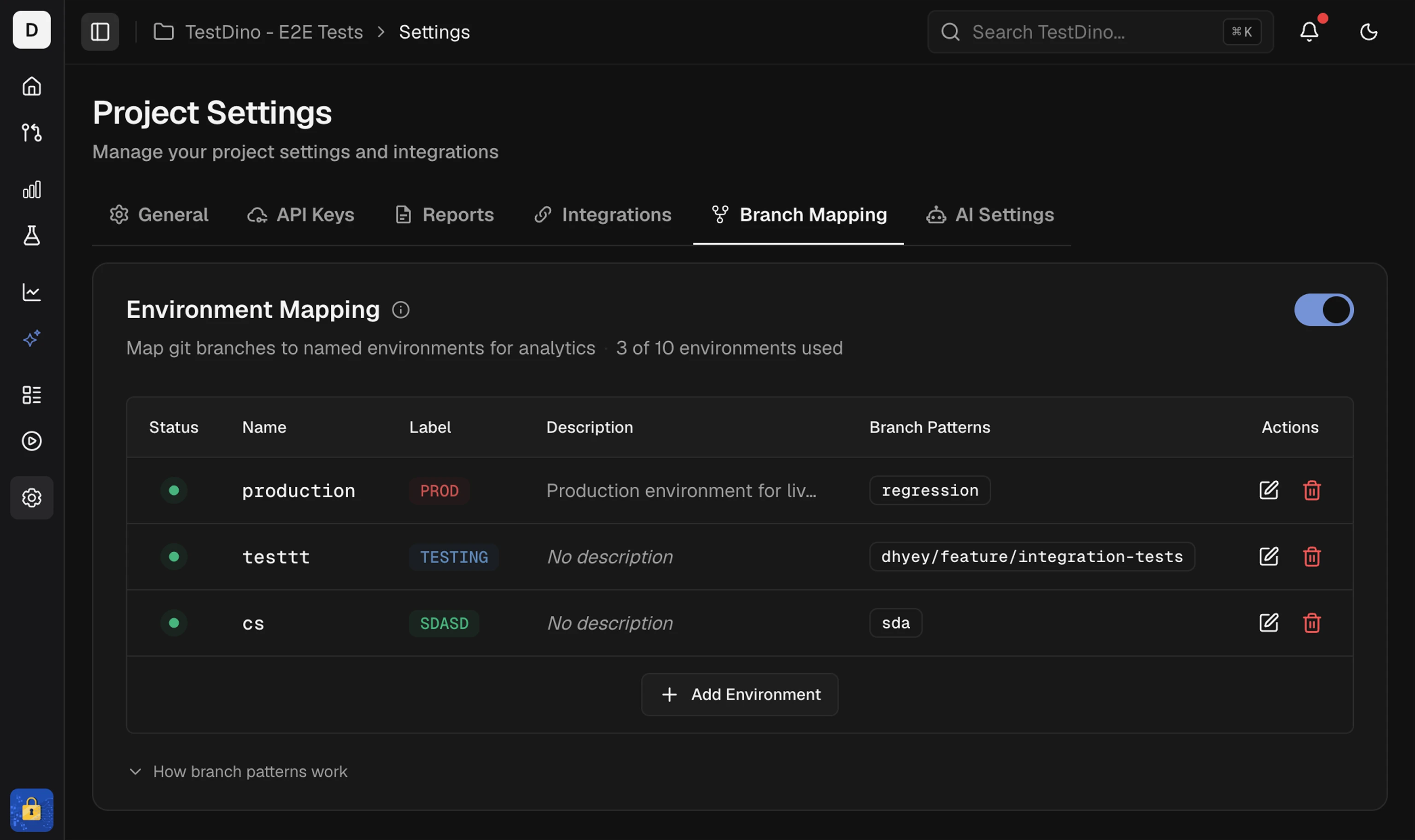 1. Enter **Name** and a short **Label**
2. Optionally set a description and color
3. Add **Branch patterns**: exact (`main`) or pattern/regex (`^feature/`)
4. Save. Changes can take up to 2 minutes to apply
A branch pattern can belong to only one environment. Duplicate patterns across environments are blocked on save. Pattern details and regex examples: [Environment Mapping](/guides/environment-mapping).
Create and store project API keys
Branch patterns and regex reference
Connect CI, Slack, and issue trackers
How AI features classify and group failures
This documentation is built and hosted on [Mintlify](https://mintlify.com), a developer documentation platform.
1. Enter **Name** and a short **Label**
2. Optionally set a description and color
3. Add **Branch patterns**: exact (`main`) or pattern/regex (`^feature/`)
4. Save. Changes can take up to 2 minutes to apply
A branch pattern can belong to only one environment. Duplicate patterns across environments are blocked on save. Pattern details and regex examples: [Environment Mapping](/guides/environment-mapping).
Create and store project API keys
Branch patterns and regex reference
Connect CI, Slack, and issue trackers
How AI features classify and group failures
This documentation is built and hosted on [Mintlify](https://mintlify.com), a developer documentation platform.