

Quick Reference
Open the report builder
The builder opens from 3 places. Members, admins, and owners can create reports.
The builder shows a live preview of the PDF beside the settings. The preview uses the project’s current data. It leaves out the cover page and table of contents, which the generated report adds.
Create a report
1
Choose the type and sections
On the Content tab, select a Report type: Test run, Quality trends, or Release. The type cannot be changed after the report is saved.Under Sections, switch off the sections you do not want. Only selected sections are included in the generated report. Click Reorder to drag sections into a different order. Reorder needs at least 2 sections switched on. The sections for each type are listed in Report sections.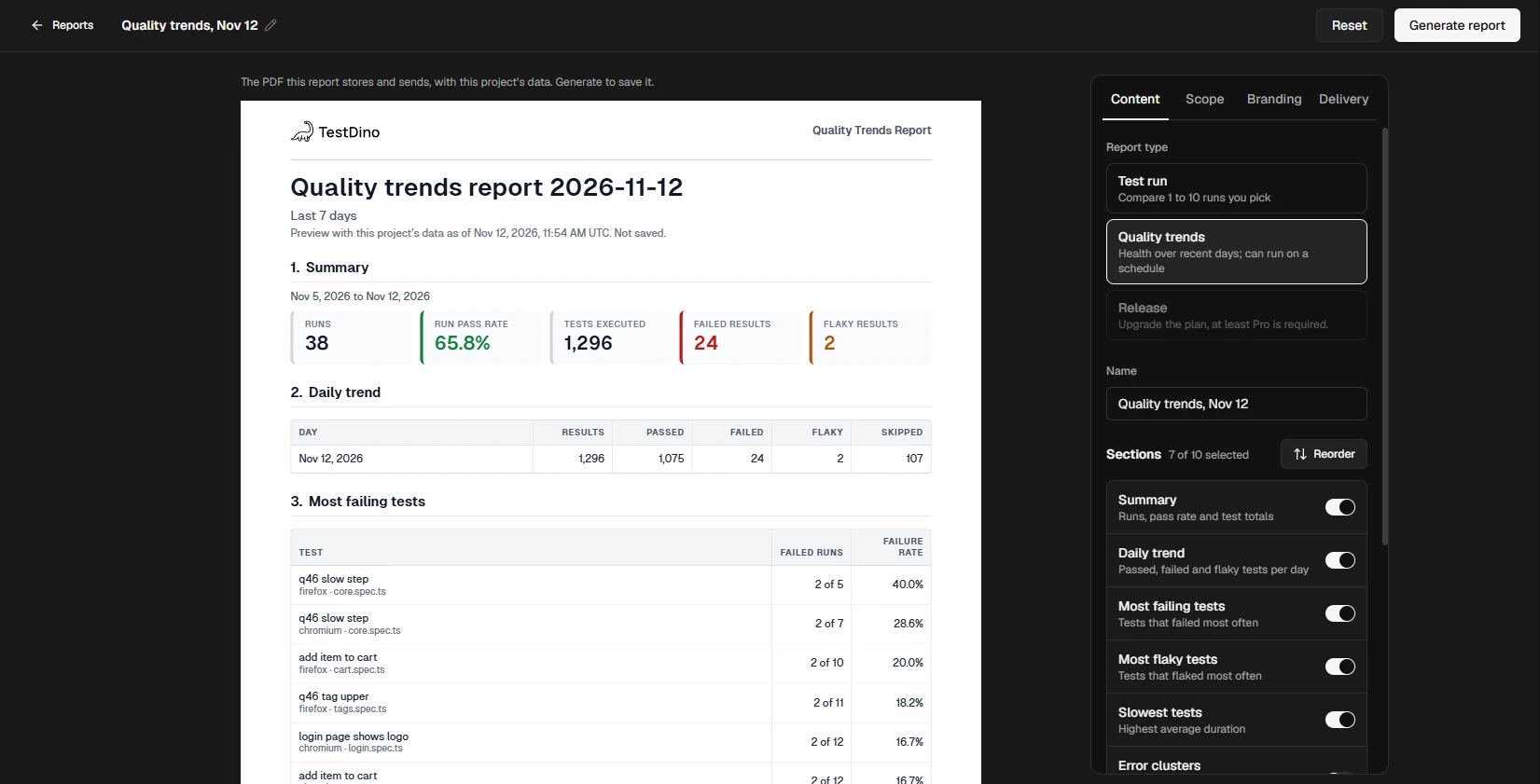 Set the report name in the Name field, or in the top bar. It appears on the PDF cover, in the email subject, and in the Slack message. A schedule’s name must be unique in the project.
2
Set the scope
On the Scope tab, choose what the report covers:
Environment filters come from your branch mapping. Without one, the field reads
Set up branch mapping to filter by environment.When no test run finished in the chosen range, the preview reads No runs finished in the last <N> days. with a Show the last 30 days button.3
Choose the logo
On the Branding tab, pick the logo shown at the top of the report. See Report logo.
4
Choose when and where to send it
On the Delivery tab, set Send to One-time, or to Daily, Weekly, or Monthly for a Quality trends schedule. Add Email recipients, Slack channels, or both.A one-time report needs no recipients. It is saved in Reports and opens from there. A schedule needs at least 1 email recipient or Slack channel. See Schedule a Quality trends report and Send by email and Slack.
5
Generate or save
Click Generate report for a one-time report, or Save schedule for a schedule. When you edit a saved schedule, the button reads Save changes. A one-time report is generated and sent right away. A schedule sends its first report at the next scheduled time.If something blocks saving, the button is disabled and the reason shows beside it. When the fix is on another tab, click the reason to open that tab.
Report sections
Every section is on by default except those marked optional.- Test run
- Quality trends
- Release
A Test run report reads up to 60 failures, 30 flaky tests, and 30 entries per test controls list for each test run. When a test run has more, the PDF says which list it cut.
Schedule a Quality trends report
Only Quality trends reports run on a schedule. Test run and Release reports are generated once. On the Delivery tab, set Send to Daily, Weekly, or Monthly, then set: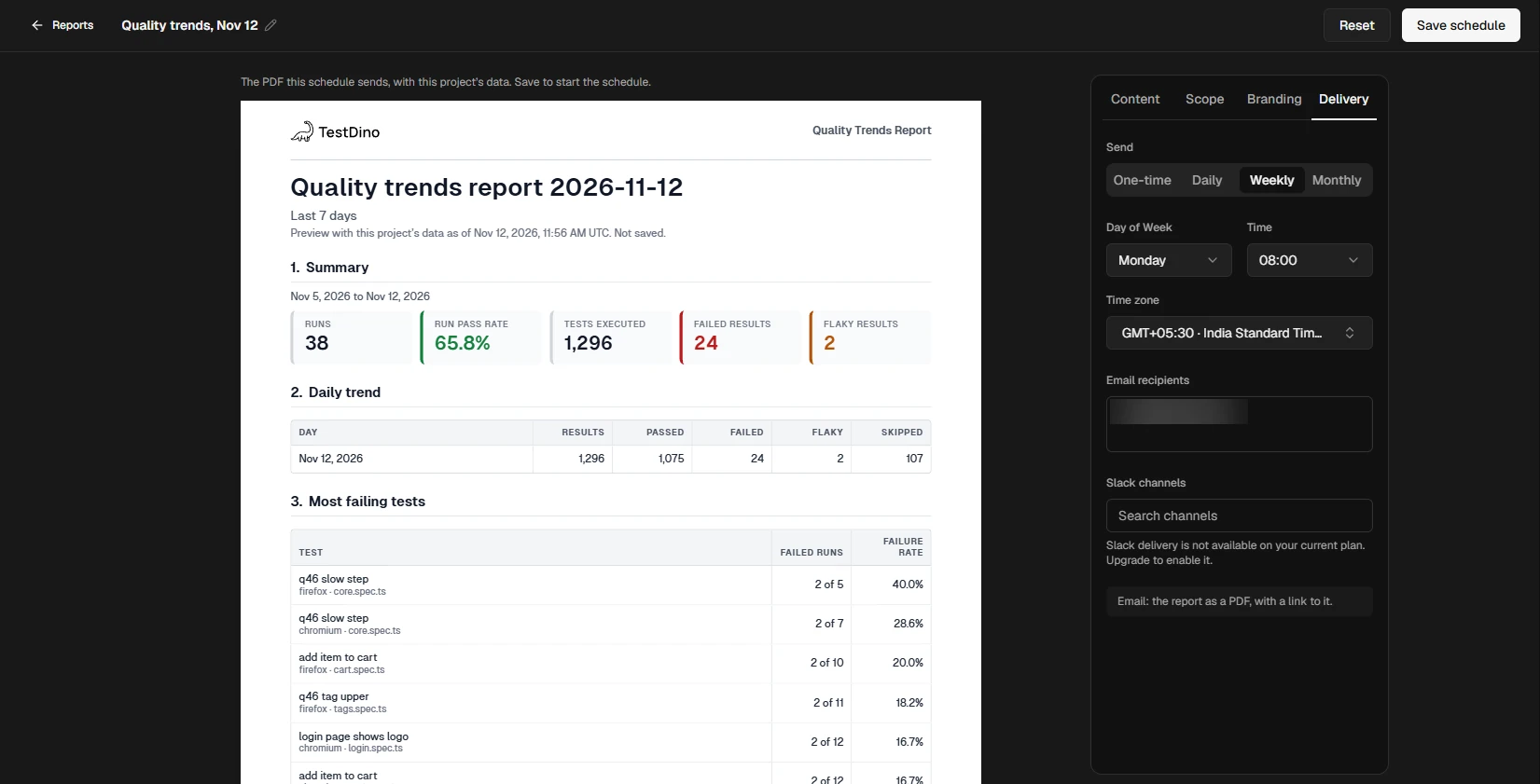 Each scheduled report covers the Time range set on the Scope tab: the last 7, 14, or 30 days.
A schedule stays a schedule after it is saved. To send it once outside its schedule, use Send now from Reports.
Scheduled reports created before report types existed keep their schedule and recipients. They send as Quality trends reports with every default section.
Send by email and Slack
The Open the report in TestDino link opens only for people with a TestDino account in your organization. Recipients outside the organization get only the attached PDF, so when the PDF is not attached they have no copy of the report.
Slack
Pick channels from Slack channels. The list shows the channels of the project’s connected Slack App. A report can post to up to 10 channels.
The Slack message shows the report’s headline numbers and the top 5 failures (or linked defects for a release), with a View full report button. The PDF is not attached to Slack.
A failed email or Slack send is retried automatically, up to 3 attempts in all. The Delivery panel shows the attempt count. A send that would fail the same way again is not retried, and the panel shows
not retried: for example, an email the provider refuses, or a Slack channel that was archived or that the TestDino bot is no longer in.
Report logo
The Branding tab sets the logo at the top of the PDF and the email.
Organization logo is the default when your organization has a logo, and TestDino logo otherwise. Without an organization logo, that option is unavailable and links to Organization settings, where an admin uploads it. See Organization settings.
Manage reports
Project Settings > Reports lists every schedule and the newest 200 one-time reports. Reports a schedule sent appear in that schedule’s Delivery history, not as rows. Filter the list with All, One-time, and Scheduled. Generated reports are kept for 90 days. Click a one-time report to open it, or a schedule to see its details and delivery history.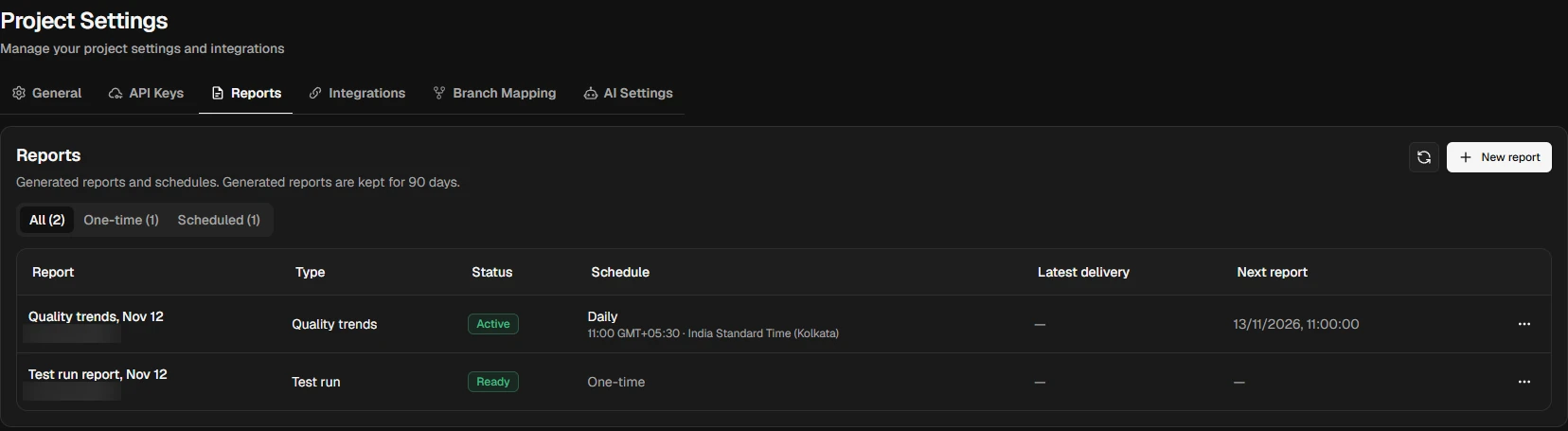
Send now generates the report immediately and sends it to the schedule’s recipients. The schedule does not change.
The details panel of a schedule shows its next report time, when it last sent, and a Delivery history of the last 90 days. Each entry opens the report it sent.
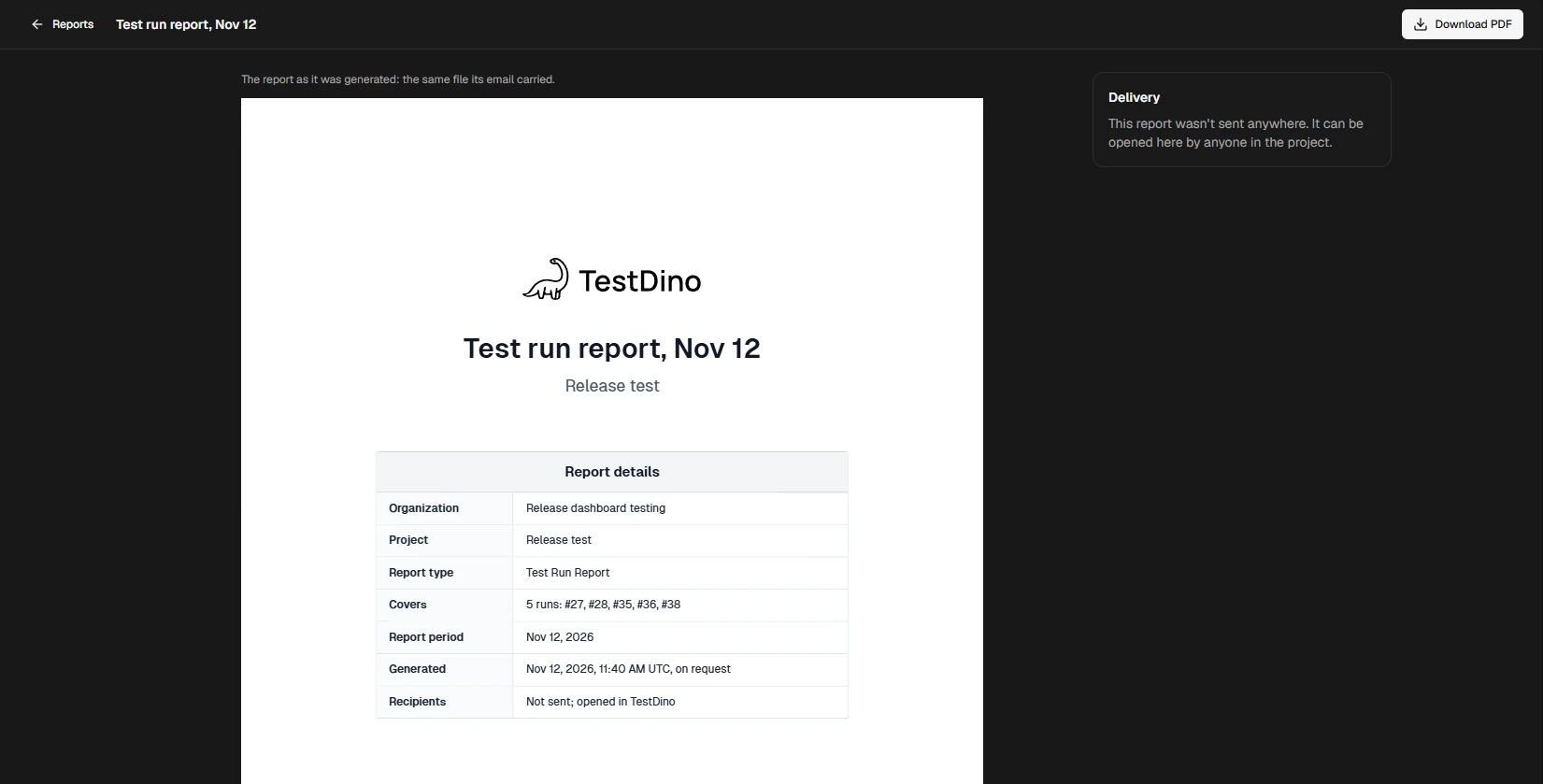
The report view shows the stored PDF and a Delivery panel with the result for each email and Slack target. When only email or only Slack failed, an admin can click Resend to email or Resend to Slack. Other roles see
Only admins can resend a report. Resend all sends the report again to every target, including those that already received it. A report sent by a schedule goes to the schedule’s current recipients and channels. A report from a deleted schedule cannot be resent: the resend fails with Report configuration not found.
Troubleshooting
Upgrade the plan, at least Pro is required.
Upgrade the plan, at least Pro is required.
The Release report type needs the Pro plan or higher. On a lower plan the card is locked and shows this message. Upgrade from Billing.
This run is still running. Wait for it to finish, then try again.
This run is still running. Wait for it to finish, then try again.
A Test run report compares finished test runs only. Wait until the test run completes, then generate the report again.
Slack isn't connected, so only email works here.
Slack isn't connected, so only email works here.
The project has no connected Slack App, or the connected app returns no channels. Click Connect Slack to open Integrations, connect the Slack App or check its channels, then come back to the Delivery tab.
An environment in this report's filters isn't set up in this project. Choose another environment or remove the environment filter.
An environment in this report's filters isn't set up in this project. Choose another environment or remove the environment filter.
The report filters on an environment that is no longer in your branch mapping, so it was not generated and nothing was sent. A schedule that fails this way is paused, and its Next report column shows Paused with
Environment isn't set up.To fix a schedule, click Edit, choose another environment or remove the environment filter, and save. Then click Resume in the row menu: saving the fix does not resume the schedule. A schedule resumed without the fix fails at its next report and is paused again.The email provider refused a recipient address, so this email isn't retried. Check the recipient list.
The email provider refused a recipient address, so this email isn't retried. Check the recipient list.
A report’s email goes to all its recipients in 1 send, so when the provider refuses 1 address, no recipient gets the email. The message does not name the address. Look for a typo or an address that cannot receive mail, such as one at
example.com.For a schedule, fix the address with Edit, then an admin clicks Resend to email in the report view. For a one-time report, generate a new report with the corrected recipients.Couldn't load your Slack channels.
Couldn't load your Slack channels.
The Slack channel list did not load. Click Try again next to the message.
A report with this name already exists
A report with this name already exists
Schedule names are unique within a project. Rename the schedule in the top bar of the builder, then save again.
Too many requests
Too many requests
A project can generate reports or use Send now 30 times per hour, and resend 30 times per hour. Past that, wait for the hour to pass. The same message shows when too many PDFs are being generated, for example on a preview or download. Then retry after 30 seconds.
A private Slack channel is missing from the list
A private Slack channel is missing from the list
Private channels appear only after the TestDino bot is invited to them. Invite the bot to the channel in Slack, then search for it again in Slack channels. A newly invited channel can take a few minutes to appear.
This organization has reached today's limit for outside recipients. Try again tomorrow.
This organization has reached today's limit for outside recipients. Try again tomorrow.
An organization can send reports to 100 outside addresses per day, counted across all projects. An address is outside when it does not belong to a member of the organization. Each send counts again: 1 address sent a one-time report, then Send now, then a resend counts 3 times. The limit resets at midnight UTC. Addresses count when a one-time report is sent, on Send now and resends, and when a schedule is saved with new addresses. A schedule’s regular sends do not count again.
The email arrived without the PDF
The email arrived without the PDF
The PDF is attached only when it is 5 MB or smaller and could be built when the email was sent. The email still links to the report. A member of your organization can click Open the report in TestDino and use Download PDF, then share the file with recipients outside the organization.
Related
Project Settings
Configure project identity, API keys, integrations, and branch mapping.
Print & PDF
Export a single test run as a PDF with your own summary.
Slack App
Connect Slack and choose the channels TestDino posts to.
Generate PDF report API
Download a Quality trends PDF from the public API.