

Test Controls requires
@testdino/playwright 2.8.0 or later. When a quarantined test case fails under an earlier reporter, the test run shows Quarantine didn't apply to this run. Update the TestDino reporter to use it. and the build behaves as before. @testdino/e2e does not apply Test Controls: a failing quarantined test case in an e2e test run still fails the build.Quick Reference
Viewers and billing users can open the Test Controls page but cannot quarantine, assign, or mark tests critical. They can Watch tests.
Open Test Controls
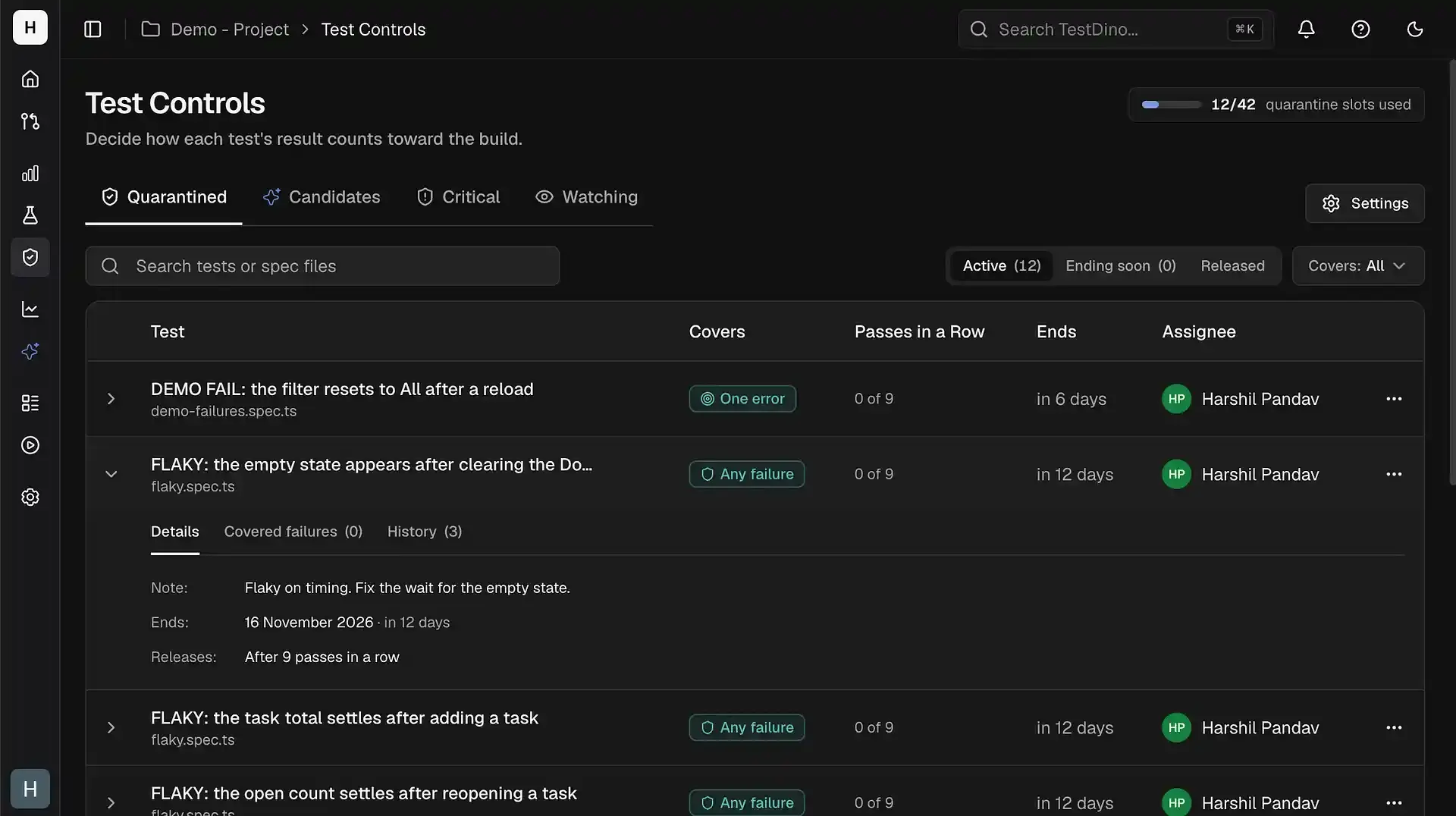
The Test Controls page in the project sidebar has 4 tabs: Quarantined, Candidates (flaky tests that failed a build in the last 30 days and are not quarantined or critical), Critical, and Watching. The header shows how many quarantine slots are used, for example3/12 quarantine slots used.
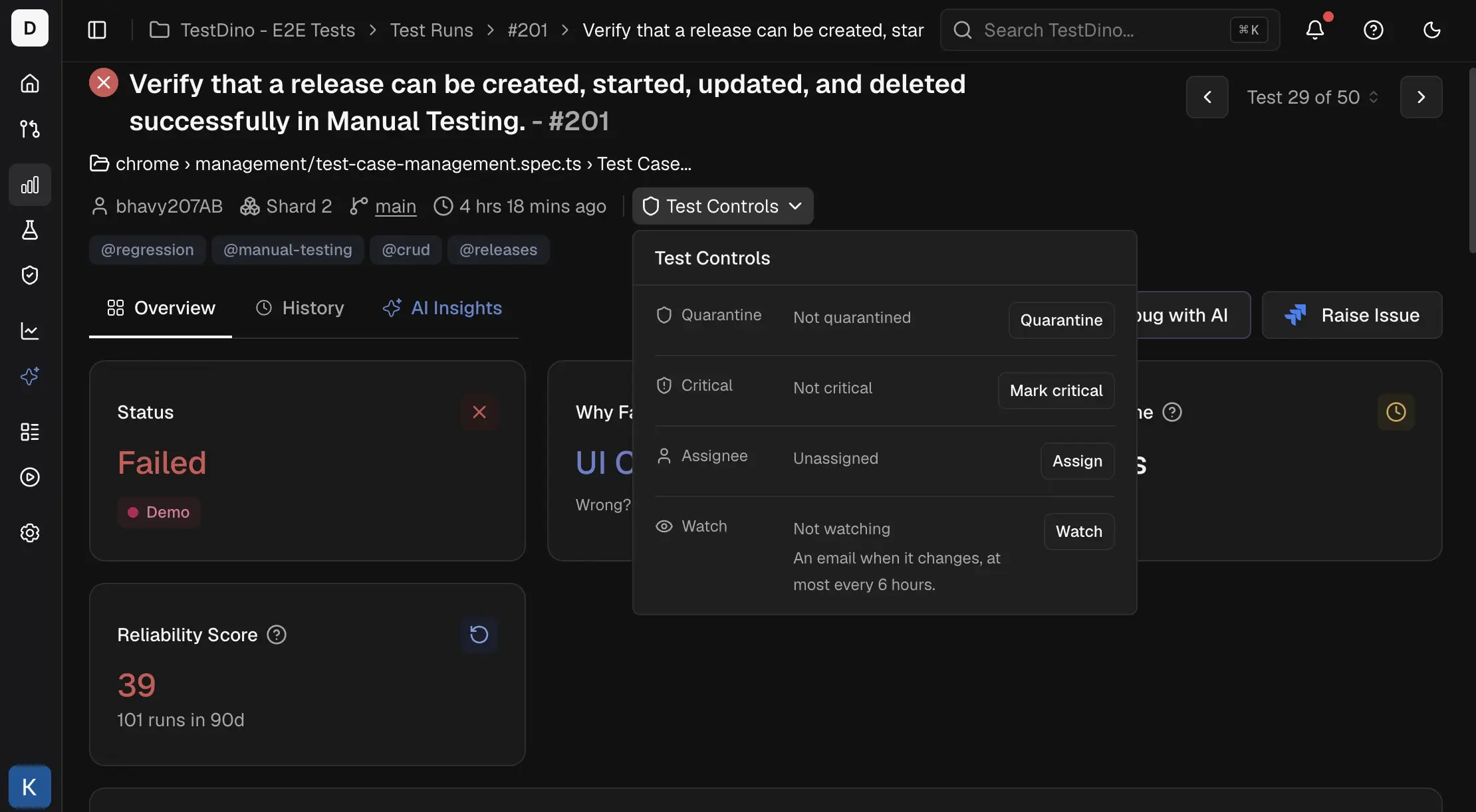
 Each test also has a Test Controls button on its test case page in a test run and in the Test Explorer side panel. The button shows when a quarantine ends, for example
Quarantined · ends in 5 days, or Critical when the test is critical. Click it to quarantine the test, mark it critical, assign it, or watch it.
Quarantine a test
A quarantine needs an end date and an assignee.1
Open the quarantine dialog
Click Test Controls on the test case page or in the Test Explorer panel, then Quarantine. On the Candidates tab, click Quarantine on a row.
2
Choose when it ends and who looks after it
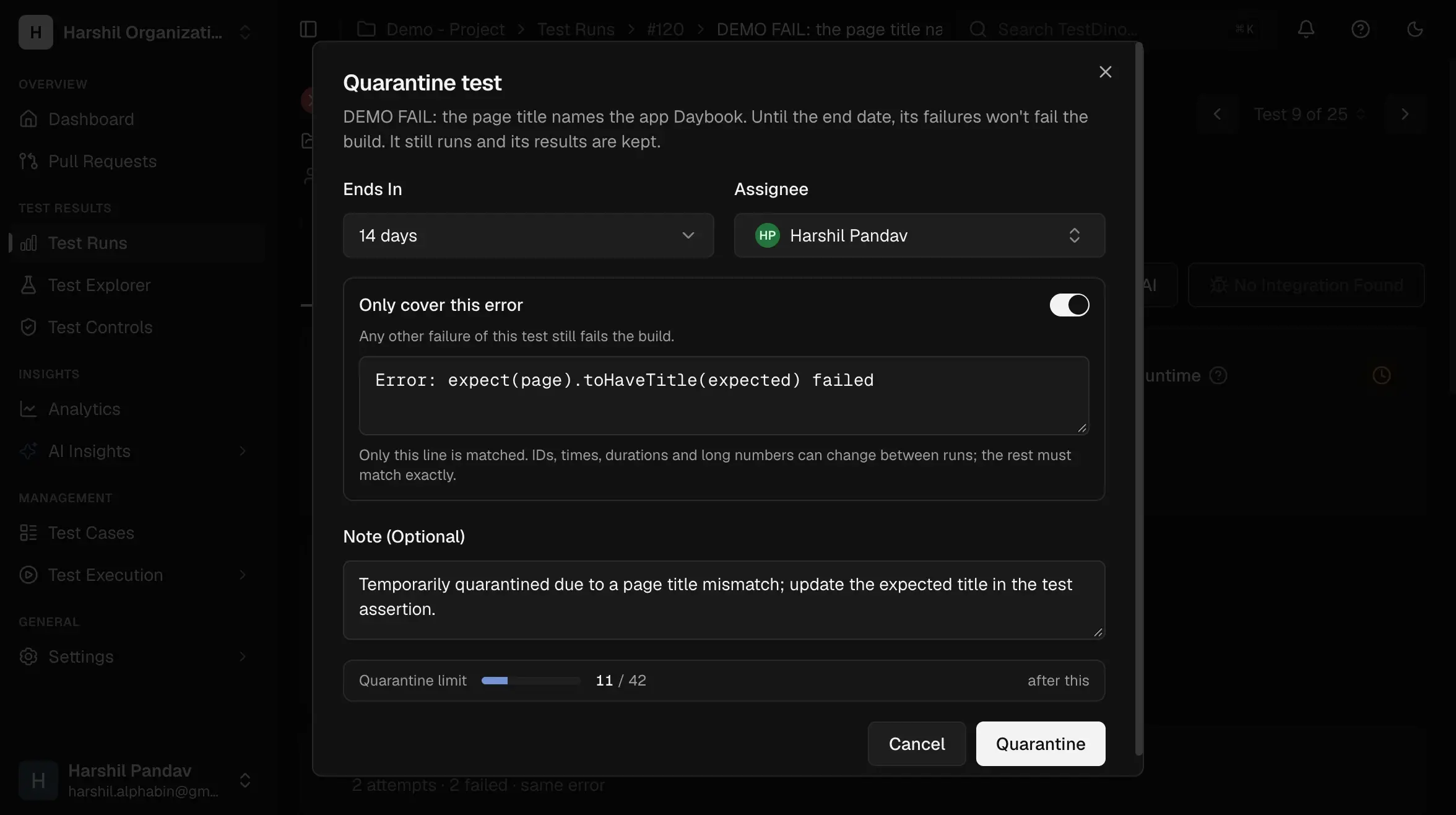
Pick Ends In: 7, 14, 30, 60, or 90 days. The project’s default duration is preselected. The Assignee defaults to the test’s assignee, or to you when the test has none. Note (Optional) records why the test is quarantined.
3
Optionally cover only 1 error
Turn on Only cover this error to forgive 1 known failure. Any other failure of the test still fails the build. The box holds the first line of the error: from this test run on the test case page, and from the test’s most recent failing test run in Test Explorer. Edit it or paste another error.Only this line is matched. IDs, times, durations, and long numbers can change between test runs; the rest must match exactly. Only cover this error is not offered when quarantining several tests at once.
4
Save
Click Quarantine. The test appears on the Quarantined tab, and the rule applies from the next test run.
 1 quarantine covers the test on every browser and Playwright project it runs on. A test that is already quarantined opens for editing instead, and a critical test cannot be quarantined.
The dialog shows the quarantine limit and disables Quarantine when the project is at it, for example
Quarantine limit reached (12 of 12). Release a test, or ask an admin to raise the limit. A test that has not run in the project recently cannot be quarantined.
Quarantine several tests at once
Select test cases in Test Explorer to quarantine them together, for example when an outside service is down. Filter by tag, spec file, or search first, then tick the rows (the header checkbox selects the whole page), and click Quarantine N tests.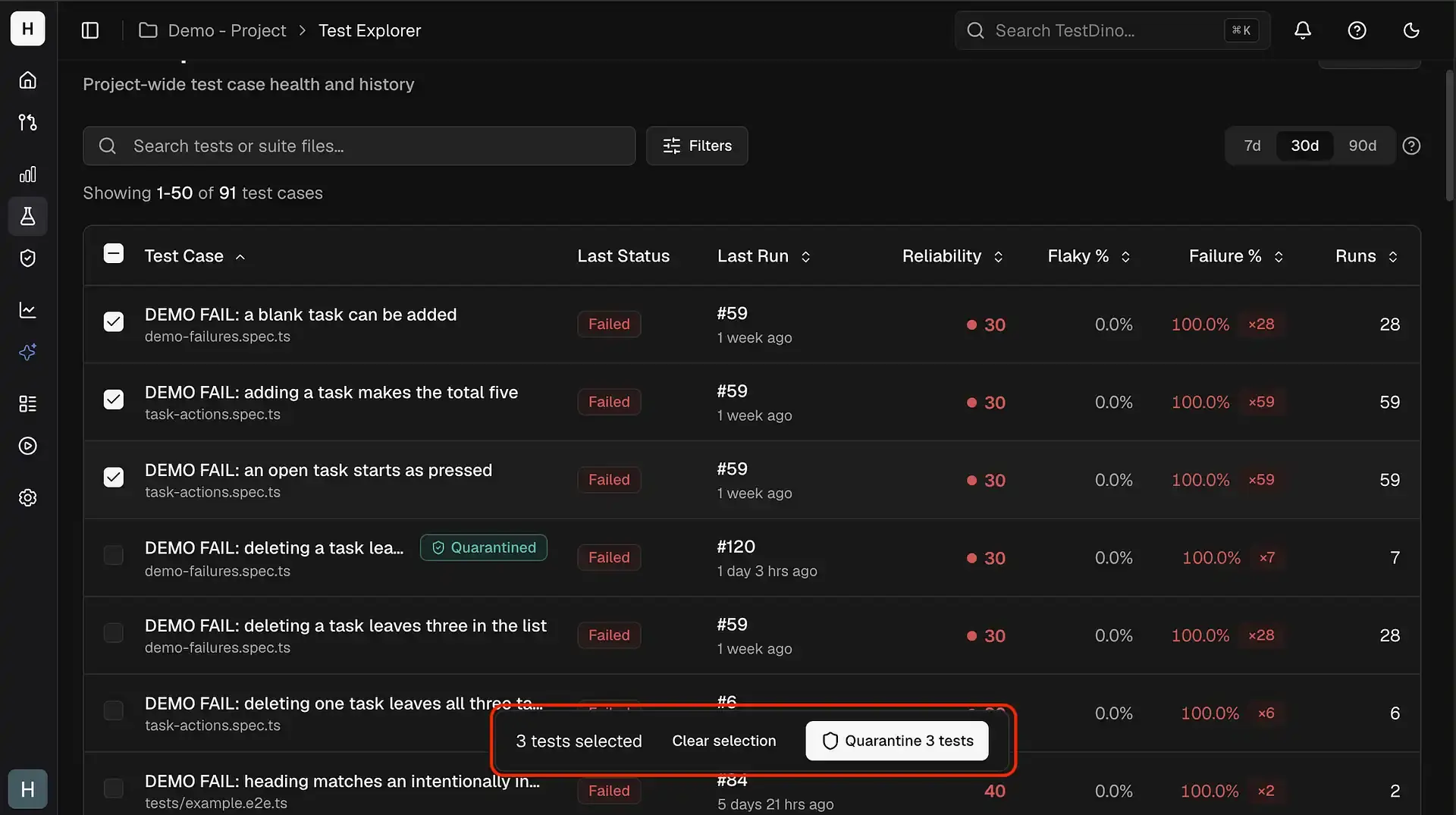
The dialog title and button show how many tests are selected, and the Quarantine limit bar shows how many slots are used after this, as
X / Y after this. Each test gets its own quarantine and is released on its own.
How the build result changes
When the test run ends, the reporter checks every failure against the project’s rules:
The reporter prints
TestDino Test Controls: fetching rules… after it authenticates. At the end of the test run it prints the rules it loaded (TestDino Test Controls: 3 rules (2 quarantined, 1 critical), with counts of 0 left out), the quarantined tests that ran (Quarantined tests in this run: 2 (2 failed, excluded from the build)), and a verdict. When no quarantined test ran and no critical test passed only on retry, only the rules line appears. The verdict is one of:
Playwright uses the last status a reporter returns. If another reporter in your config sets the test run’s status, list TestDino after it.
What the test run and notifications show
The test run keeps its real status. A test run with a failed test case reads Failed even when quarantine passed the build. Its quarantined test cases are tagged Quarantined, and the test run notes2 quarantined failures covered, so they didn't fail the build.
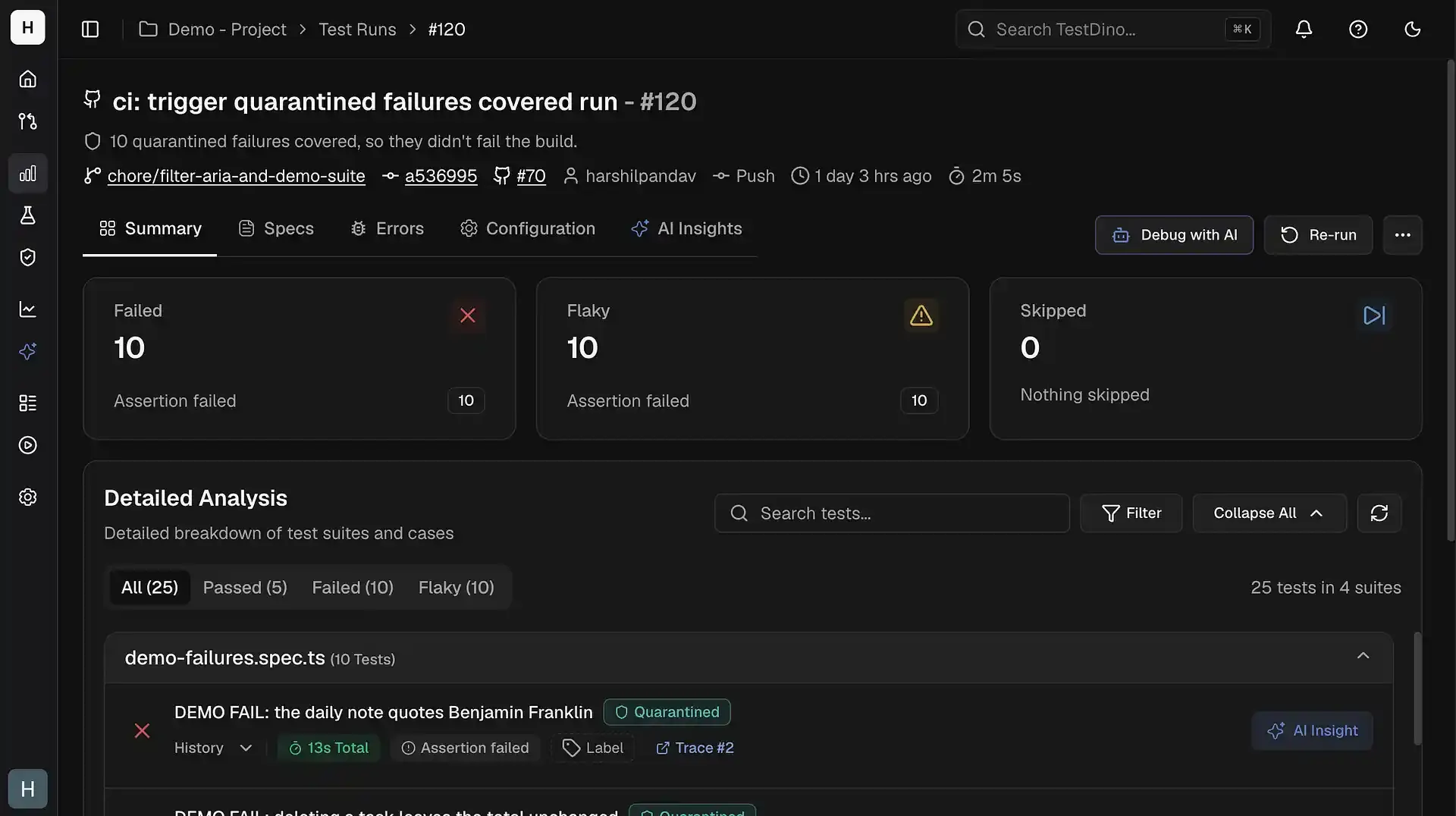
To find these test runs, filter the test runs list with More filters → Test Controls: Changed by Test Controls, Had quarantined failures, or Critical test passed only on retry. In a test run’s summary, Filter → Test Controls narrows it to Quarantined or Critical: passed only on retry test cases.
Mark a test critical
A critical test must pass on the first try. If it fails and then passes on a retry, the build fails. Click Test Controls on the test case page, then Mark critical. Owners and admins can mark up to 50 critical tests per project. A quarantined test cannot be marked critical until its quarantine is released. To make a test ordinary again, click Test Controls, then Remove in the Critical row. When a critical test passes only on retry:- The test run stays Passed, and the test case is tagged Critical: passed only on retry.
- Slack gets a second message right below the test run message, such as
Critical test passed only on retry in run #42, with each test linked to its page. - The PR comment opens with a caution box naming the test, and the PR description gets a Critical test passed only on retry line.
- The GitHub check title adds
❗ 1 critical passed on retry, and the quality gate fails.
Watch or assign a test
Click Test Controls, then Watch, to get a message when the test changes state: it starts failing, passes only on retry, or passes again. Click Stop watching to end it.- The first test run after you start watching only records the test’s state, so the first message comes with the next change.
- A test sends you at most 1 message every 6 hours. A change inside that window is sent after it, if the test is still in its new state.
- The message is a Slack direct message from the TestDino Slack app when the project’s Slack app can reach you, otherwise an email. A Slack workspace connected before Test Controls sends email until the Slack app is reconnected.
When a quarantine ends
The Quarantined tab has 3 views: Active, Ending soon (quarantines that end within 3 days), and Released. Search by test or spec file, and filter by Assignee, Covers (Any failure or One error), and, in Released, Why it ended. Every quarantine ends. The Released view shows why:
A pass only on retry resets the count to 0, and a test run where the test was skipped does not count. The Passes in a Row column shows progress, for example
6 of 10.
Expand a row to see its Details, its History, and Covered failures: the test runs in the last 90 days whose failure the quarantine kept from failing the build, each linked to its page.
From a row’s menu:
- Extend or edit changes the end date, assignee, or note.
- Link ticket opens Link work item to record 1 Jira or Linear issue. It needs Jira or Linear connected; otherwise looking up an issue key shows
Connect Jira or Linear in Settings → Integrations to link work items.When the issue is marked done, or a Linear issue is canceled, the quarantine is released. Once linked, the menu shows Change ticket and Unlink ticket. - Release ends the quarantine now. The test fails the build again when it fails.
Configure Test Controls settings
Click Settings on the Test Controls page. Owners and admins can change these:
The limit is how many tests can be quarantined at once. At least 1 test is always allowed, and lowering it never releases a test.
Use Test Controls from an AI assistant or the API
The TestDino MCP server gives an AI assistant the actions on this page, with the same roles. For example:- “What is quarantined in this project, and what ends this week?”
- “Quarantine the checkout tests that failed in the last test run for 7 days, assigned to me.”
- “Which test runs did our quarantines cover this week?”
Troubleshooting
Quarantine didn't apply to this run. Update the TestDino reporter to use it.
Quarantine didn't apply to this run. Update the TestDino reporter to use it.
The test run used a reporter older than 2.8.0, so quarantined failures counted as usual. Upgrade
@testdino/playwright to 2.8.0 or later.TestDino Test Controls: rules not loaded
TestDino Test Controls: rules not loaded
The reporter could not fetch the rules in time, so failures counted as usual, and the test run shows
Quarantine didn't apply to this run with the reason. Check that CI can reach the hosts listed in Network Endpoints.Quarantine limit reached
Quarantine limit reached
The project holds as many quarantines as its limit allows. Release a test, or ask an owner or admin to raise Quarantine Limit (% of Active Tests) in Test Controls settings.
This test hasn't run recently, so there is nothing to quarantine.
This test hasn't run recently, so there is nothing to quarantine.
None of the test’s browser variants ran in the project’s recent test runs, for example because it was renamed or deleted. Quarantine the test under its current name.
Failures didn't fail the build, but no quarantine covered them during this run
Failures didn't fail the build, but no quarantine covered them during this run
The reporter left these failures out of the build result, but TestDino found no quarantine for those tests at any time during the test run. Treat them as real failures: check the test run’s failed test cases against the Quarantined tab, and rerun the build if it should have failed.
Build still fails with only quarantined failures
Build still fails with only quarantined failures
Another reporter in your Playwright config set the test run’s status after TestDino. Move TestDino last in the
reporter list.Related
Flaky Tests
Find flaky tests across test runs
Test Explorer
Select test cases to quarantine together
GitHub CI Checks
Quality gates on pull requests
Release Readiness
Check whether a build is ready to ship
Node.js reporter
Install and configure
@testdino/playwright